
Hướng Dẫn Bật Xác Thực 2 Bước Bằng Google Authenticator
 Bùi Trung Quân
7 phút đọc
93 views
Bùi Trung Quân
7 phút đọc
93 views
Cài Đặt Google Authenticator | Install Google Authenticator
Bước 1: Tải ứng dụng Google Authenticator từ cửa hàng ứng dụng chính thức trên điện thoại.
Step 1: Download Google Authenticator from your phone's official app store.
Android: Download on Phone
iPhone: Download on Phone
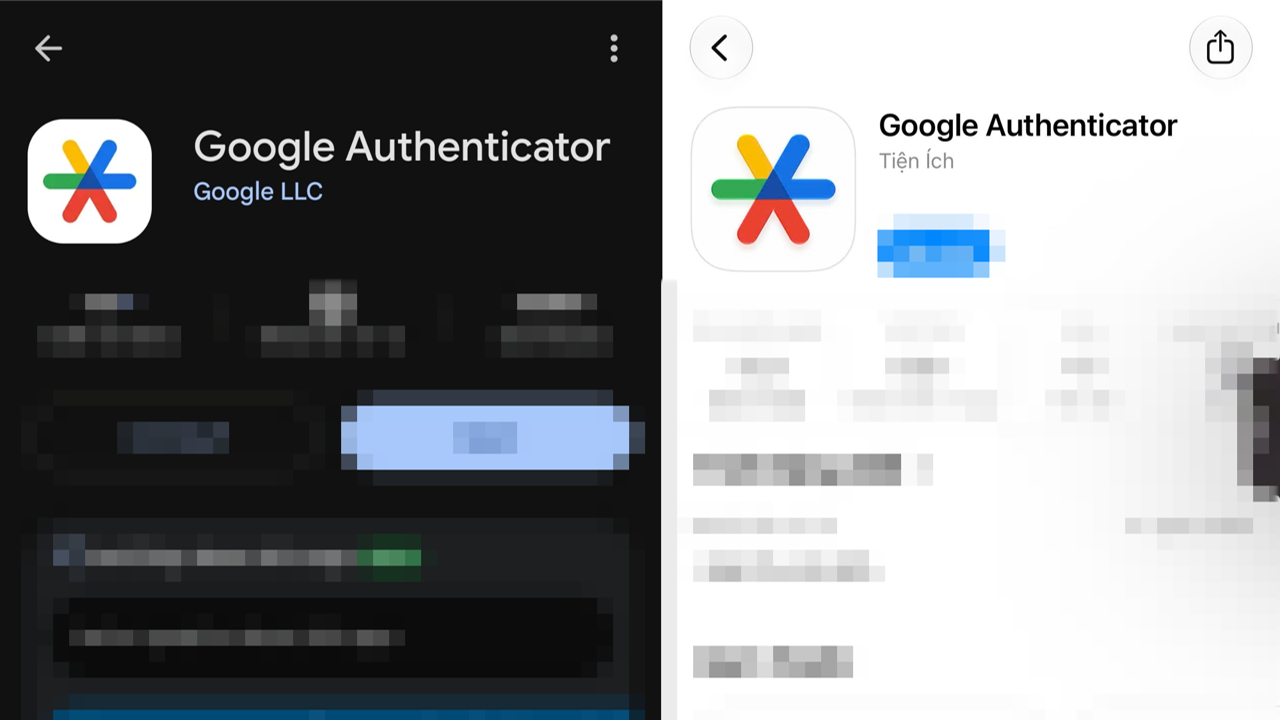
Bước 2: Mở ứng dụng sau khi cài đặt hoàn tất. (Khuyến nghi đăng nhập bằng Gmail cá nhân)
Step 2: Open the app after installation. (Prefer login with personal Gmail)
Thiết Lập Xác Thực 2 Bước | Set Up 2-Step Verification
Bước 1: Trên máy tính, truy cập Google Account và đăng nhập bằng tài khoản Google cần bảo vệ.
Step 1: On your computer, visit Google Account and sign in to the Google Account you want to protect.
Bước 2: Tìm mục Xác minh 2 bước (2-Step Verification) và làm theo hướng dẫn trên màn hình để bật tính năng. Google có thể yêu cầu xác minh danh tính trước khi tiếp tục.
Step 2: Find 2-Step Verification and follow the on-screen instructions to enable it. Google may ask you to verify your identity before continuing.
.png)
Bước 3: Trong phần thiết lập phương thức xác minh, chọn Thiết lập Authenticator (Set up authenticator) hoặc tùy chọn tương đương.
Step 3: Under the available verification methods, select Set up authenticator or the equivalent option.
.png)
Bước 4: Trên màn hình máy tính, Google sẽ hiển thị mã QR để liên kết tài khoản với ứng dụng. Mở Google Authenticator trên điện thoại, chọn thêm tài khoản và quét mã QR đang hiển thị trên máy tính.
Step 4: Google will display a QR code on your computer. Open Google Authenticator on your phone, choose to add an account, and scan the QR code.
.png)
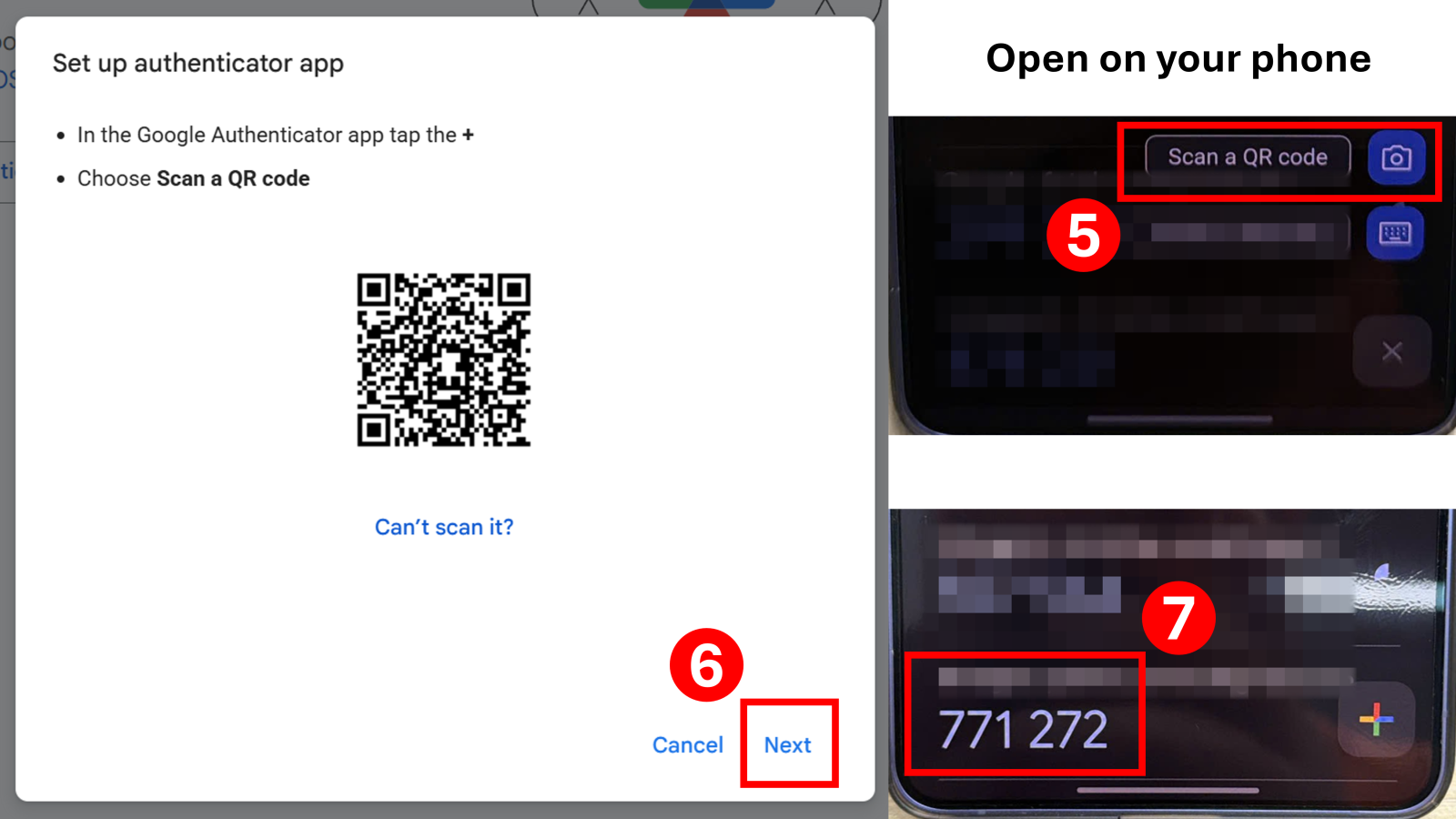
Lưu ý: Không chia sẻ hoặc gửi mã QR thiết lập cho người khác. Nếu không thể quét mã QR, hãy làm theo tùy chọn thiết lập thủ công mà Google cung cấp, nếu có.
Note: Do not share or send the setup QR code to anyone. If you cannot scan the QR code, follow Google's manual setup option, if available.
Bước 5: Sau khi quét mã QR, Google Authenticator sẽ hiển thị mã xác minh gồm 6 chữ số. Nhập mã này vào trang thiết lập Google để hoàn tất quá trình liên kết. Hãy nhập mã hiện tại trước khi mã hết hạn.
Step 5: After scanning the QR code, Google Authenticator will display a 6-digit verification code. Enter the current code on Google's setup page before it expires to complete the setup.
.png)
Bước 6: Làm theo hướng dẫn để hoàn tất quá trình. Truy cập lại mục Xác minh 2 bước (2-Step Verification) để kiểm tra cấu hình tài khoản.
Step 6: Follow the remaining instructions to finish setup. Return to 2-Step Verification to review your account settings.
.png)
Cách Sử Dụng Khi Đăng Nhập | How to Sign In
Bước 1: Đăng nhập tài khoản Google bằng tên tài khoản và mật khẩu như bình thường.
Step 1: Sign in to your Google Account using your username and password as usual.
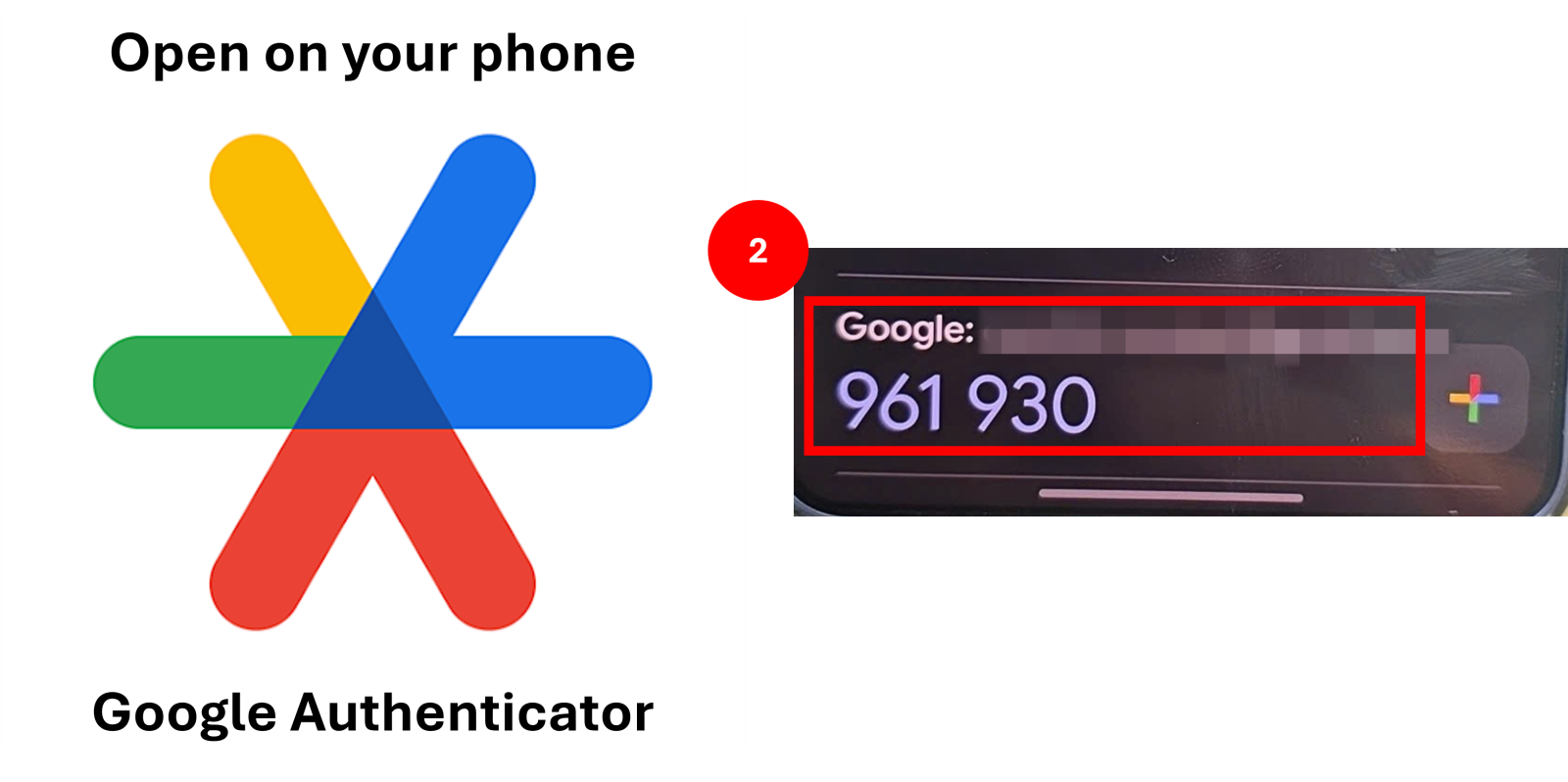
Bước 2: Khi Google yêu cầu mã xác minh, mở ứng dụng Google Authenticator trên điện thoại.
Step 2: When Google asks for a verification code, open Google Authenticator on your phone.
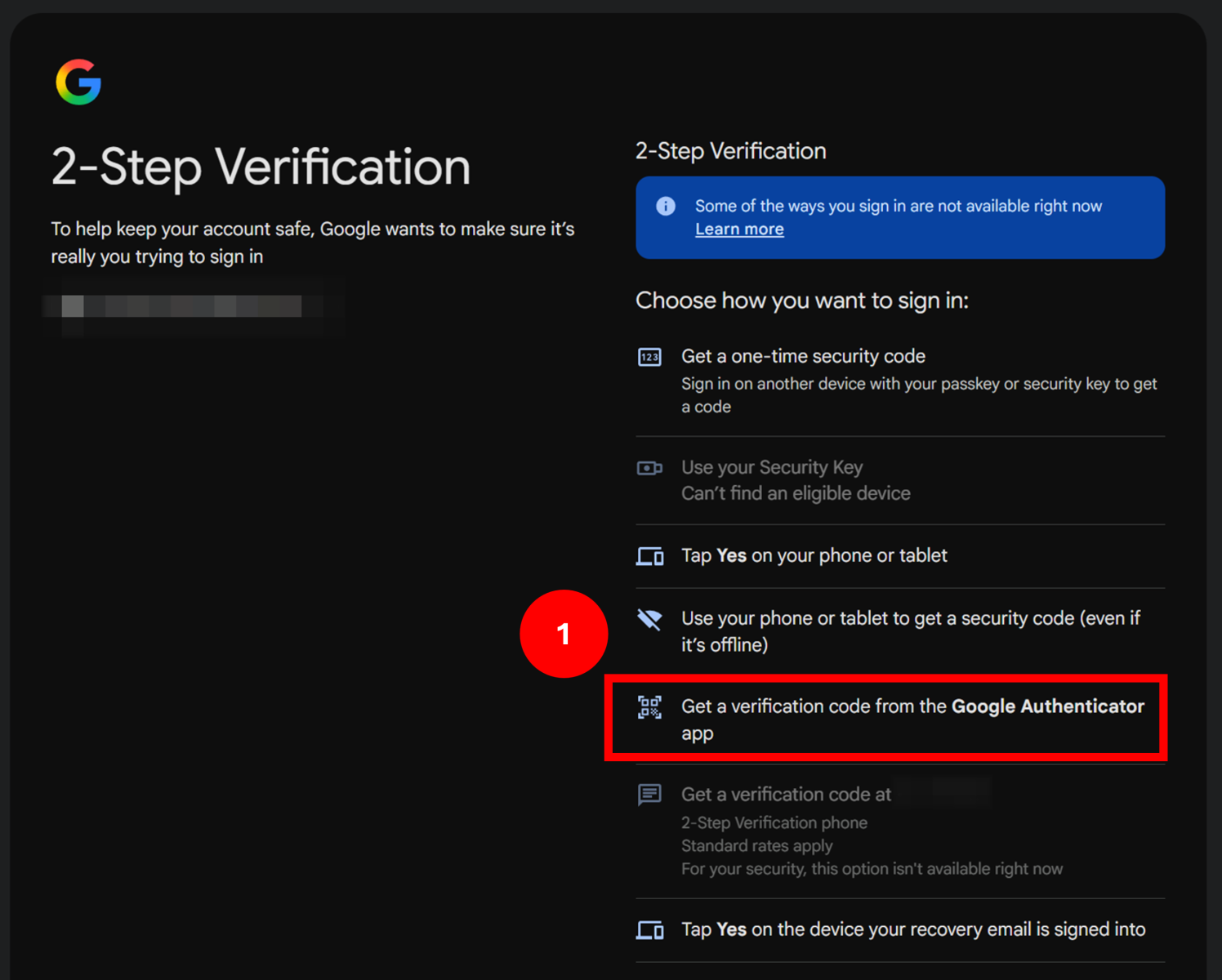
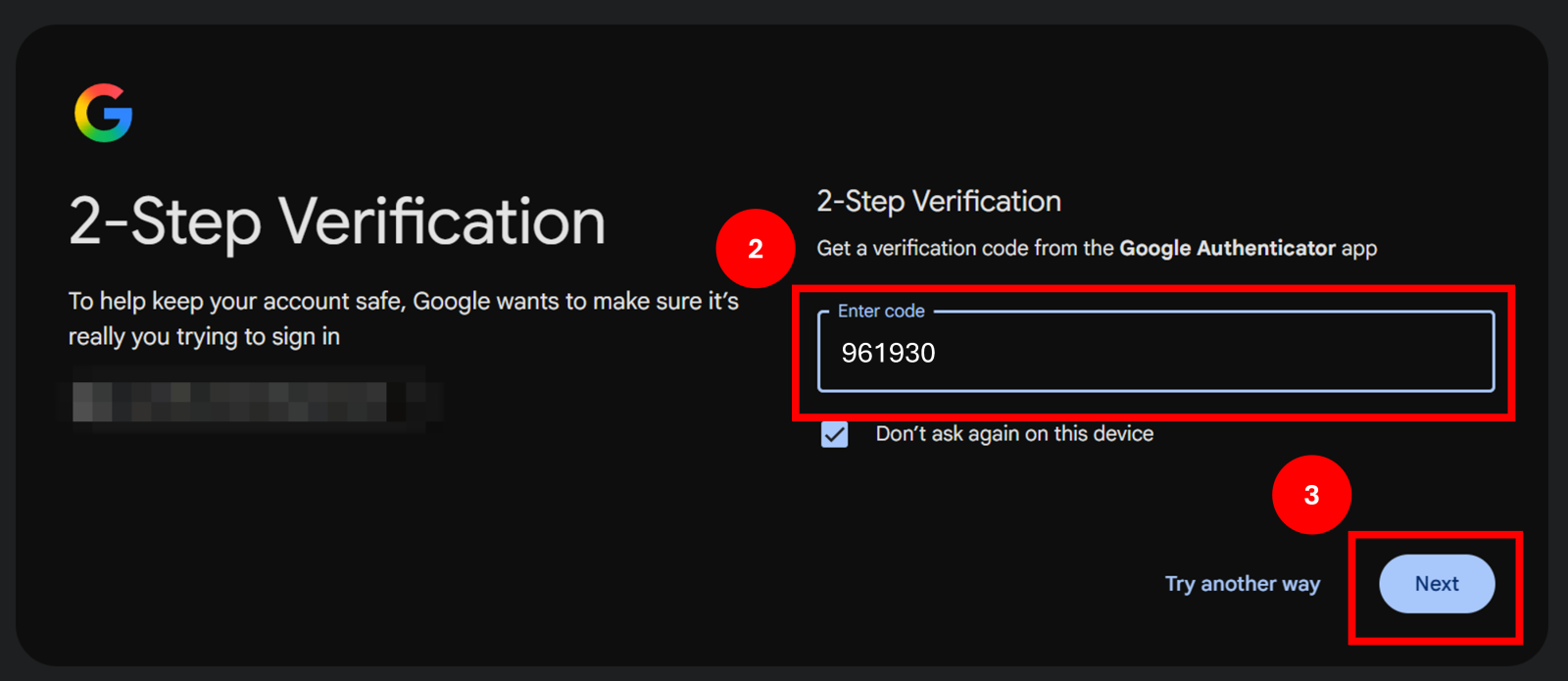
Bước 3: Tìm mã tương ứng với tài khoản Google cần đăng nhập và nhập mã gồm 6 chữ số vào màn hình xác minh.
Step 3: Find the code associated with the Google Account you are signing in to and enter the 6-digit code on the verification screen.
KHÁC
- 1 . Thông Báo Nhanh (Date: 20/10/2026)
- 2 . Hướng Dẫn Bật Xác Thực 2 Bước Bằng Google Authenticator
- 3 . Hướng Dẫn Chỉnh Lại Chuột Về Mặc Định Trên Windows
- 4 . Cách Bật Windows Update
- 5 . Hướng Dẫn Sửa Lỗi Đen Màn Hình
- 6 . Hướng dẫn sửa lỗi Safe Exam Browser (SEB) – Prohibited Display Configuration
- 7 . Hướng dẫn gỡ cài đặt 360 Total Security hoàn toàn trên Windows
- 8 . Sơ đồ phòng học Đại học FPT HCM
- 9 . Sơ đồ phòng học Campus FPTU HCM
- 10 . Hướng dẫn cài đặt ứng dụng MyFPT Next dành cho giảng viên
- 11 . Hướng dẫn cài đặt SEB cho Edunext trên MacOS
- 12 . Hướng dẫn cài đặt SEB cho Edunext trên Windows