
Hướng dẫn mượn laptop của sinh viên trong trường
 Phạm Phú Phi
5 phút đọc
6569 views
I. CÁC TRƯỜNG HỢP MƯỢN LAPTOP
LAPTOP BORROWING CASES
Trường hợp 1: Mượn laptop từ bên ngoài trường
Case 1: Borrowing a laptop from outside the university
Máy tính chưa được đăng ký địa chỉ MAC với nhà trường. Sinh viên chỉ cần thực hiện thủ tục Đăng ký Máy Tính trên website IT-HCM.
The laptop's MAC address has not been registered with the university. Students only need to complete the Computer Registration procedure on the IT-HCM website.
Trường hợp 2: Mượn laptop của sinh viên trong trường
Case 2: Borrowing a laptop from another student
Máy tính đã được đăng ký địa chỉ MAC với nhà trường. Sinh viên cần thực hiện thủ tục Đăng ký mượn máy theo hướng dẫn bên dưới.
The laptop's MAC address has already been registered with the university. Students must complete the Borrow Laptop procedure by following the instructions below.
II. QUY TRÌNH MƯỢN LAPTOP CỦA SINH VIÊN TRONG TRƯỜNG
HOW TO BORROW A LAPTOP FROM ANOTHER STUDENT
A. Người mượn máy gửi yêu cầu
Borrower: Submit a borrowing request
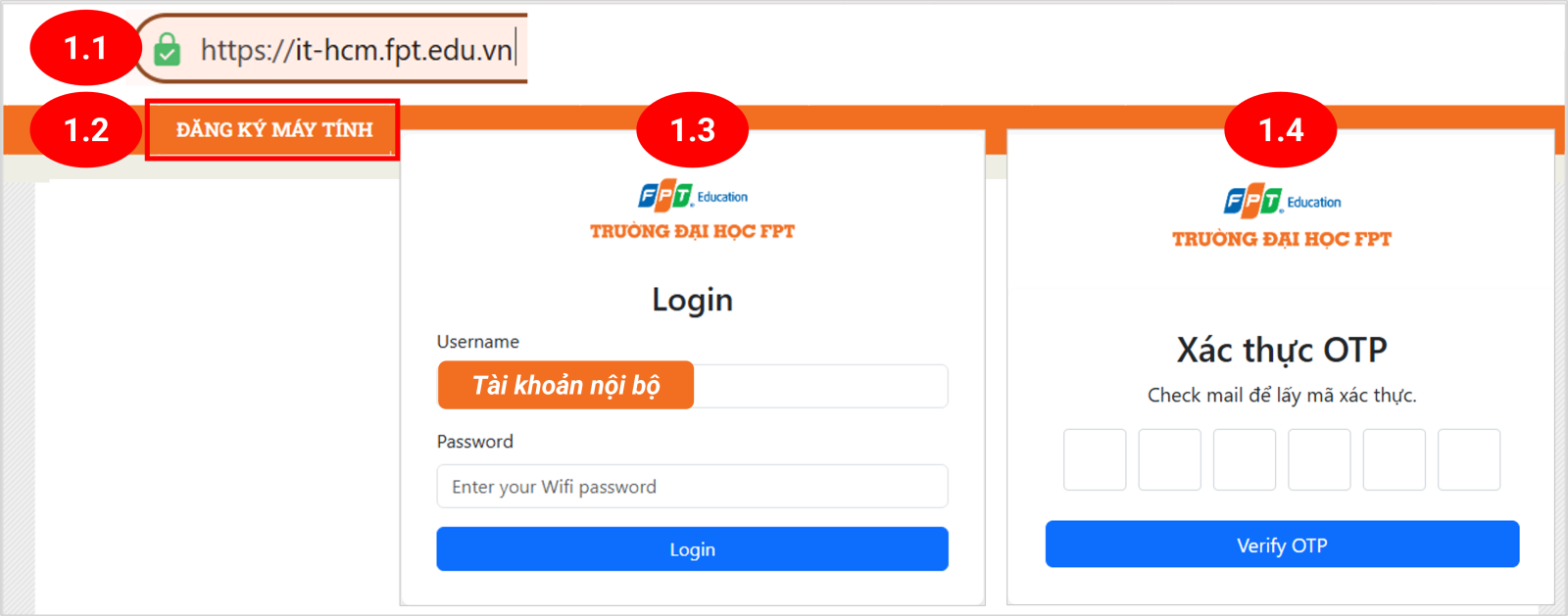
Bước 1: Truy cập https://it-hcm.fpt.edu.vn/ → Chọn Đăng Ký Máy Tính (Computer Registration) → Login.
Step 1: Visit https://it-hcm.fpt.edu.vn/ → Select Đăng Ký Máy Tính (Computer Registration) → Login.
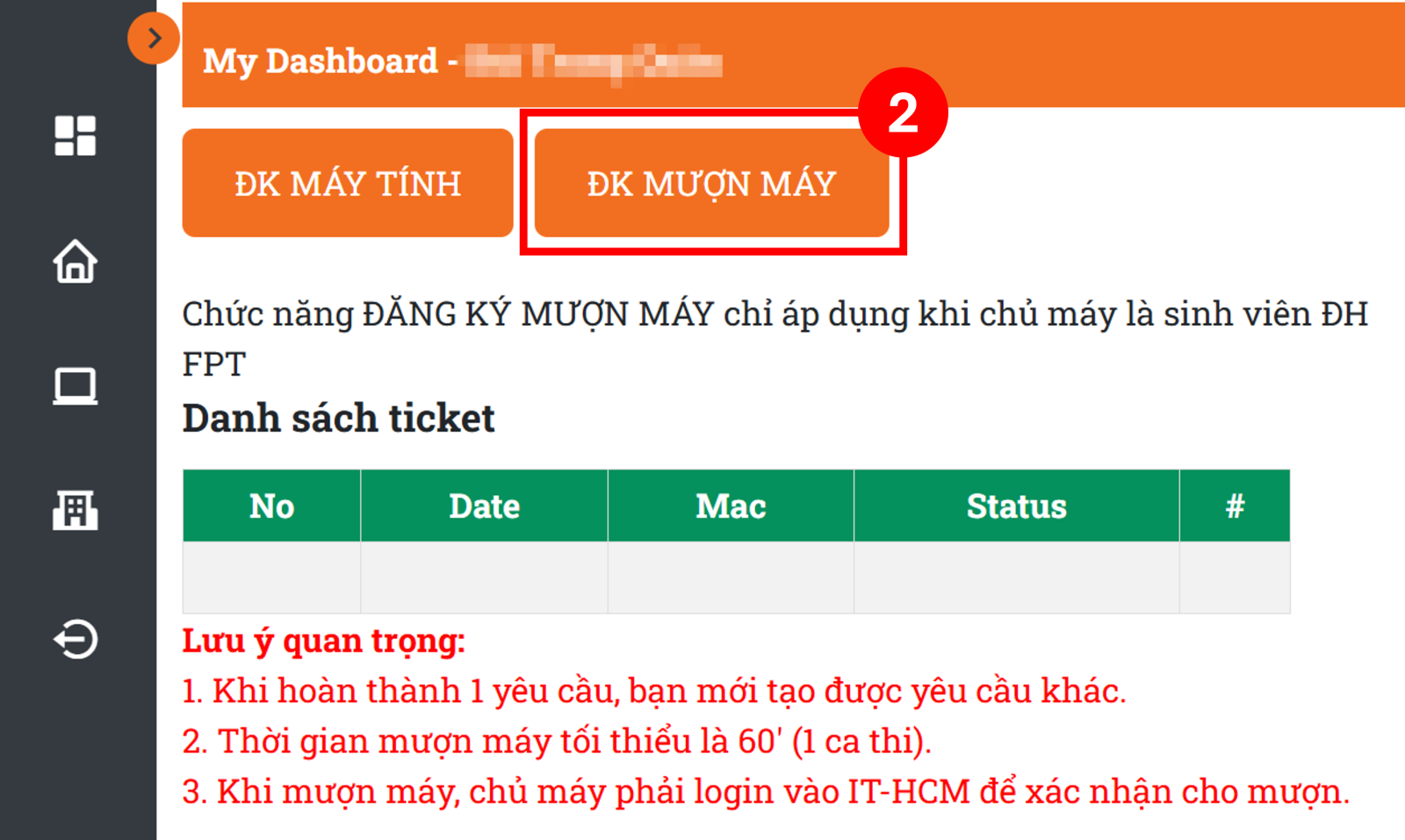
Bước 2: Tại trang Dashboard, chọn ĐK Mượn máy (Borrow Laptop).
Step 2: On the Dashboard, select ĐK Mượn máy (Borrow Laptop).
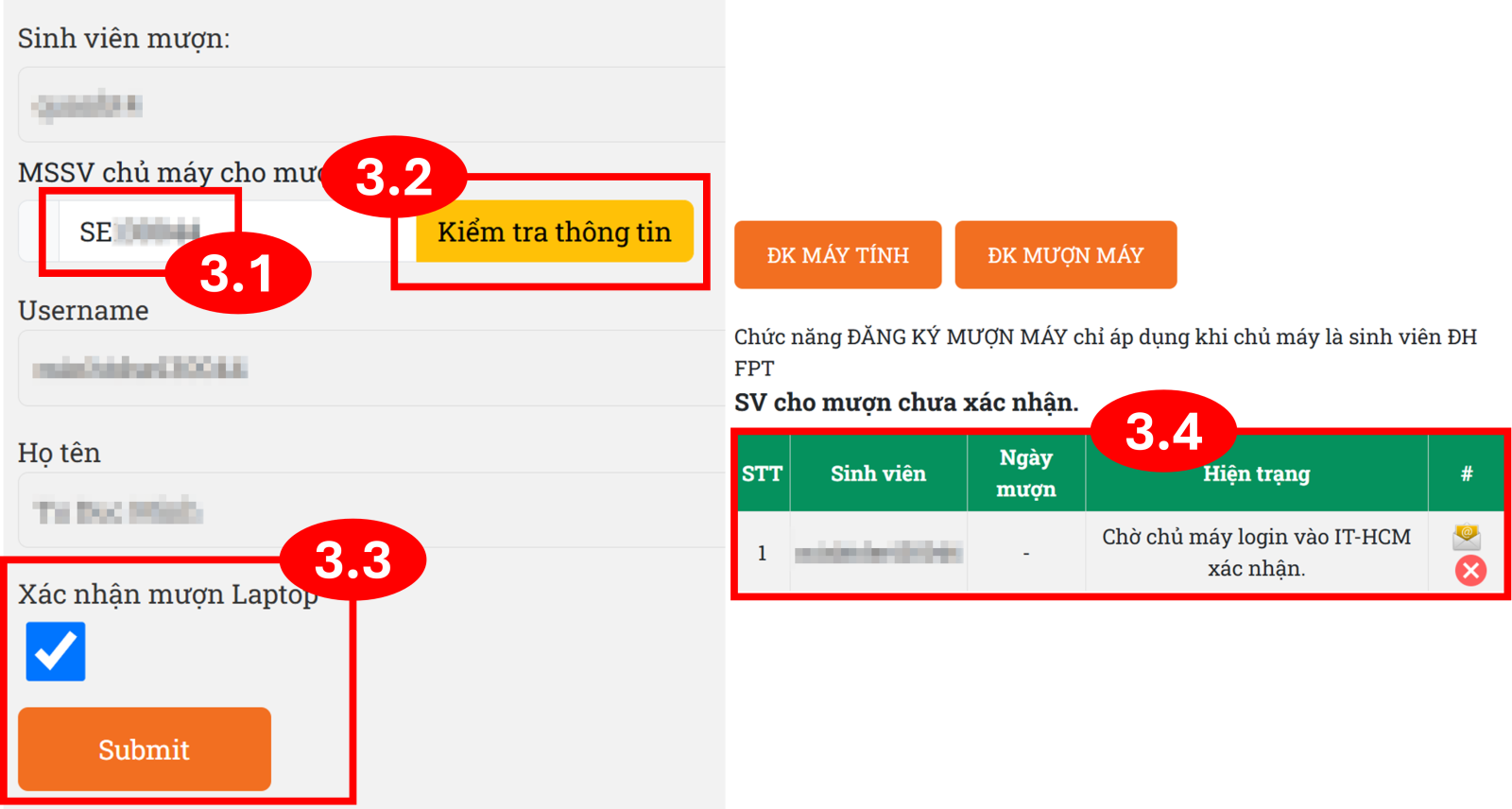
Bước 3: Nhập thông tin chủ máy
Step 3: Enter the laptop owner's information
-
Nhập MSSV của chủ máy.
Enter the laptop owner's Student ID.
-
Chọn Kiểm tra thông tin để kiểm tra thông tin chủ máy.
Select Kiểm tra thông tin (Check Information) to verify the owner's details.
-
Xác nhận thông tin chính xác và chọn Submit để gửi yêu cầu.
Confirm that the information is correct, then select Submit to send the request.
B. Chủ máy xác nhận yêu cầu
Laptop Owner: Approve the borrowing request
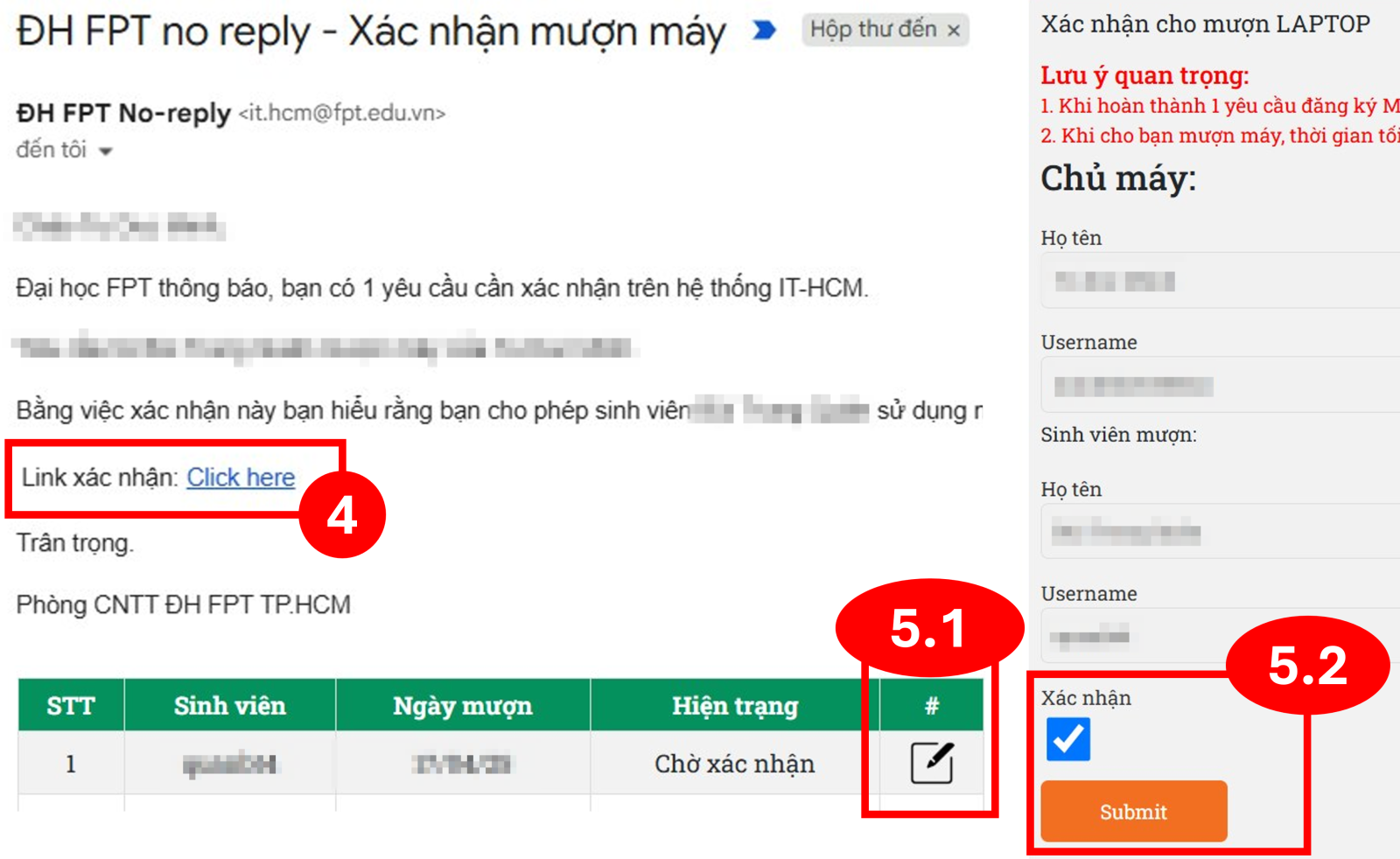
Bước 4: Kiểm tra email thông báo
Step 4: Check the notification email
Chủ máy sẽ nhận được email thông báo có yêu cầu mượn laptop.
The laptop owner will receive an email notification about the borrowing request.
Chọn đường dẫn trong email hoặc truy cập website IT-HCM → Đăng Ký Máy Tính → Login.
Click the link in the email or visit the IT-HCM website → Đăng Ký Máy Tính (Computer Registration) → Login.
Bước 5: Xác nhận yêu cầu mượn máy
Step 5: Approve the borrowing request
-
Tại trang Dashboard, tìm yêu cầu mượn máy.
Find the borrowing request on the Dashboard.
-
Chọn biểu tượng cây viết để xem thông tin người mượn.
Select the pencil icon to view the borrower's information.
-
Kiểm tra thông tin và chọn Submit để xác nhận.
Verify the information and select Submit to approve the request.
C. Sử dụng laptop
Using the borrowed laptop
Bước 6: Đăng nhập WiFi bằng tài khoản của người mượn
Step 6: Connect to WiFi using the borrower's account
Trên laptop được mượn:
On the borrowed laptop:
-
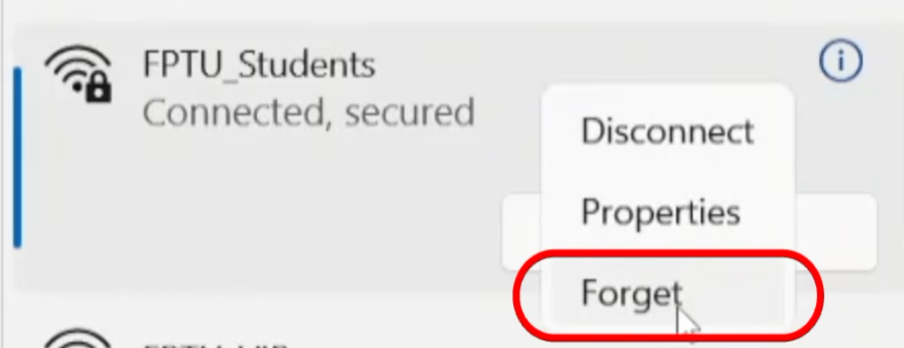
Chuột phải vào mạng WiFi Student và Exam đã lưu.
Right-click the saved Student and Exam WiFi networks.
-
Chọn Forget để xóa thông tin kết nối cũ.
Select Forget to remove the saved network information.
-
Kết nối lại WiFi bằng tài khoản của chính người mượn.
Reconnect to WiFi using your own account.
III. QUY TRÌNH TRẢ LAPTOP
HOW TO RETURN THE LAPTOP
Bước 7: Xác nhận trả máy trên hệ thống
Step 7: Confirm the laptop return
Sau khi sử dụng xong laptop:
After using the laptop:
-
Người mượn truy cập website IT-HCM → Đăng Ký Máy Tính → Login.
Visit the IT-HCM website → Đăng Ký Máy Tính (Computer Registration) → Login.
-
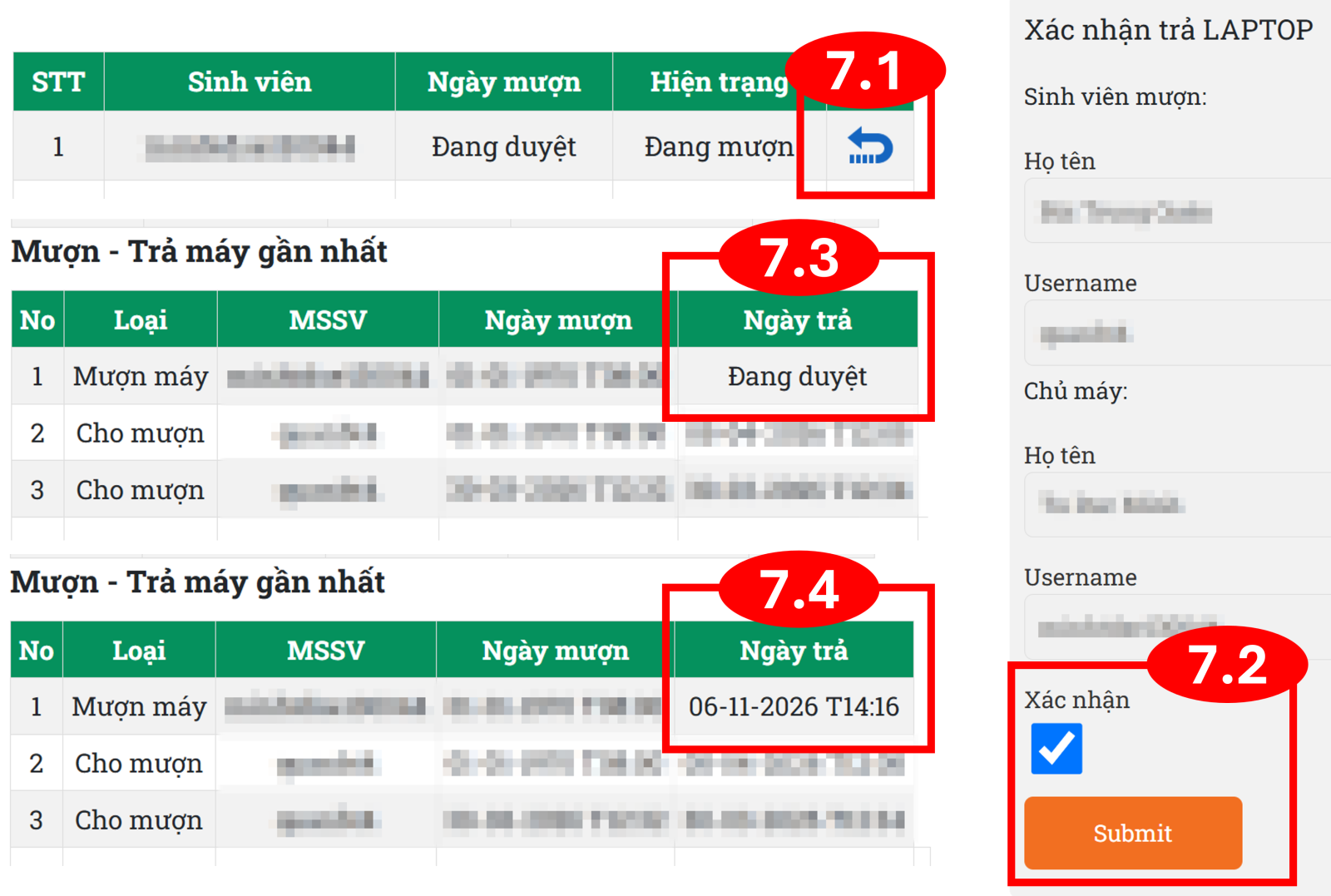
Tại Dashboard, tìm yêu cầu mượn máy.
Find the borrowing request on the Dashboard.
-
Chọn biểu tượng mũi tên quay lại màu xanh dương để xác nhận trả máy.
Select the blue return arrow icon to confirm the laptop return.
Bước 8: Xóa thông tin WiFi của người mượn
Step 8: Remove the borrower's saved WiFi information
Trước khi trả laptop cho chủ máy:
Before returning the laptop to its owner:
-
Chuột phải vào mạng WiFi Student và Exam đã lưu.
Right-click the saved Student and Exam WiFi networks.
-
Chọn Forget để xóa thông tin kết nối của người mượn.
Select Forget to remove the borrower's saved network information.
-
Trả laptop lại cho chủ máy.
Return the laptop to its owner.
WIFI
- 1 . Test article
- 2 . Hướng dẫn mượn laptop của sinh viên trong trường
- 3 . Hướng Dẫn Đăng Ký Máy Tính Online
- 4 . THÔNG BÁO VỀ VIỆC THAY ĐỔI WIFI TẦNG G-1-2 KHU A
- 5 . Hướng Dẫn Kết Nối WiFi Hệ Điều Hành Windows 7
- 6 . Lấy địa chỉ MAC tự động bằng phần mềm
- 7 . Hướng dẫn lấy địa chỉ MAC trên laptop
- 8 . Hướng dẫn kết nối Wifi tại campus HCM dành cho sinh viên