
Hướng Dẫn Chỉnh Lại Chuột Về Mặc Định Trên Windows
 Bùi Trung Quân
1 phút đọc
4714 views
Bùi Trung Quân
1 phút đọc
4714 views

Các bước thực hiện
Steps to Follow
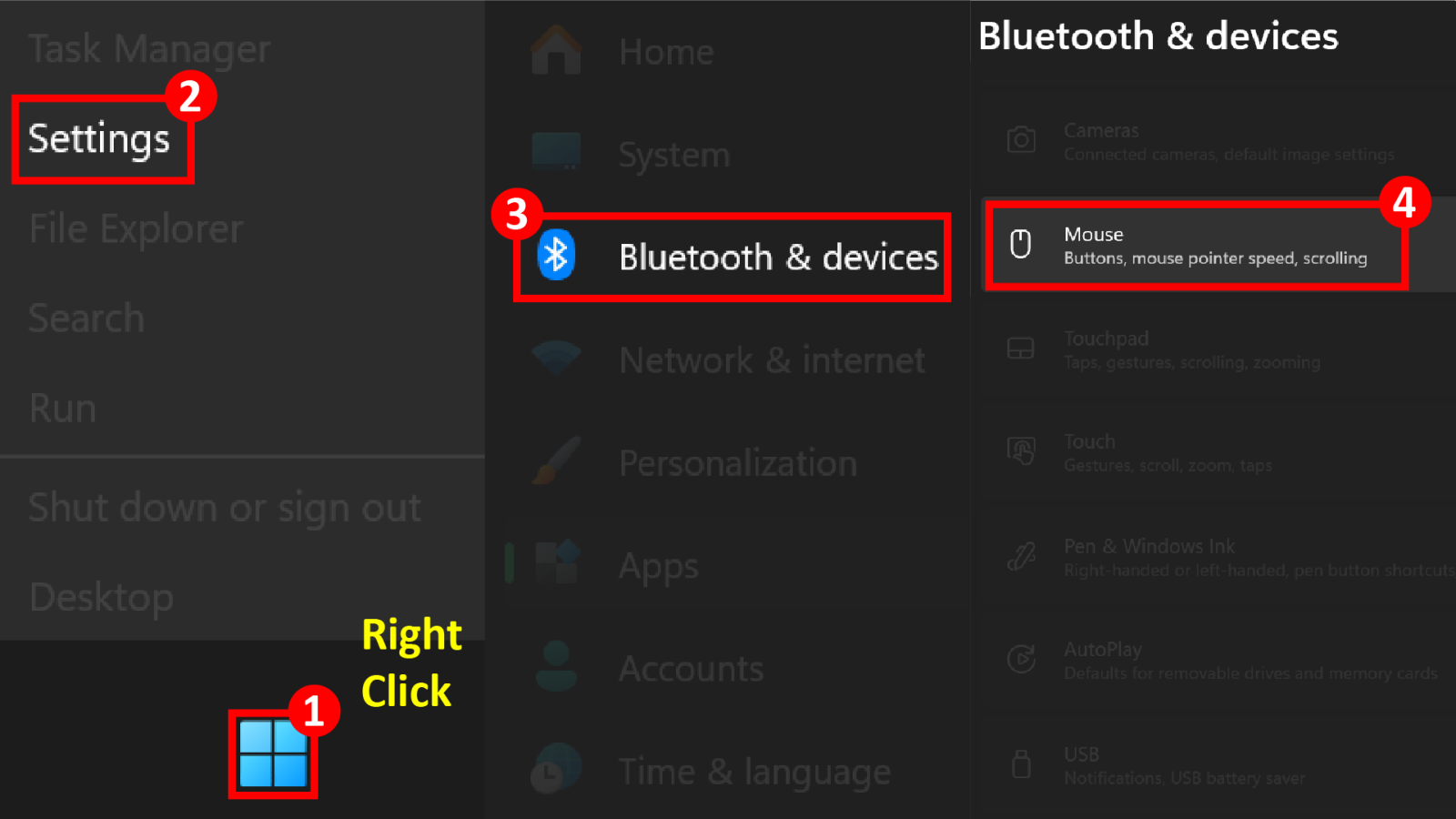
• Bước 1: Chuột phải vào biểu tượng Windows ở góc dưới bên trái màn hình.
Step 1: Right-click the Windows icon at the bottom-left corner of the screen.
• Bước 2: Trong menu hiện ra, chọn Settings.
Step 2: From the menu, select Settings.
• Bước 3: Trong cửa sổ Settings, chọn Bluetooth & devices.
Step 3: In the Settings window, select Bluetooth & devices.
• Bước 4: Ở khung bên phải, chọn Mouse.
Step 4: On the right panel, click Mouse.
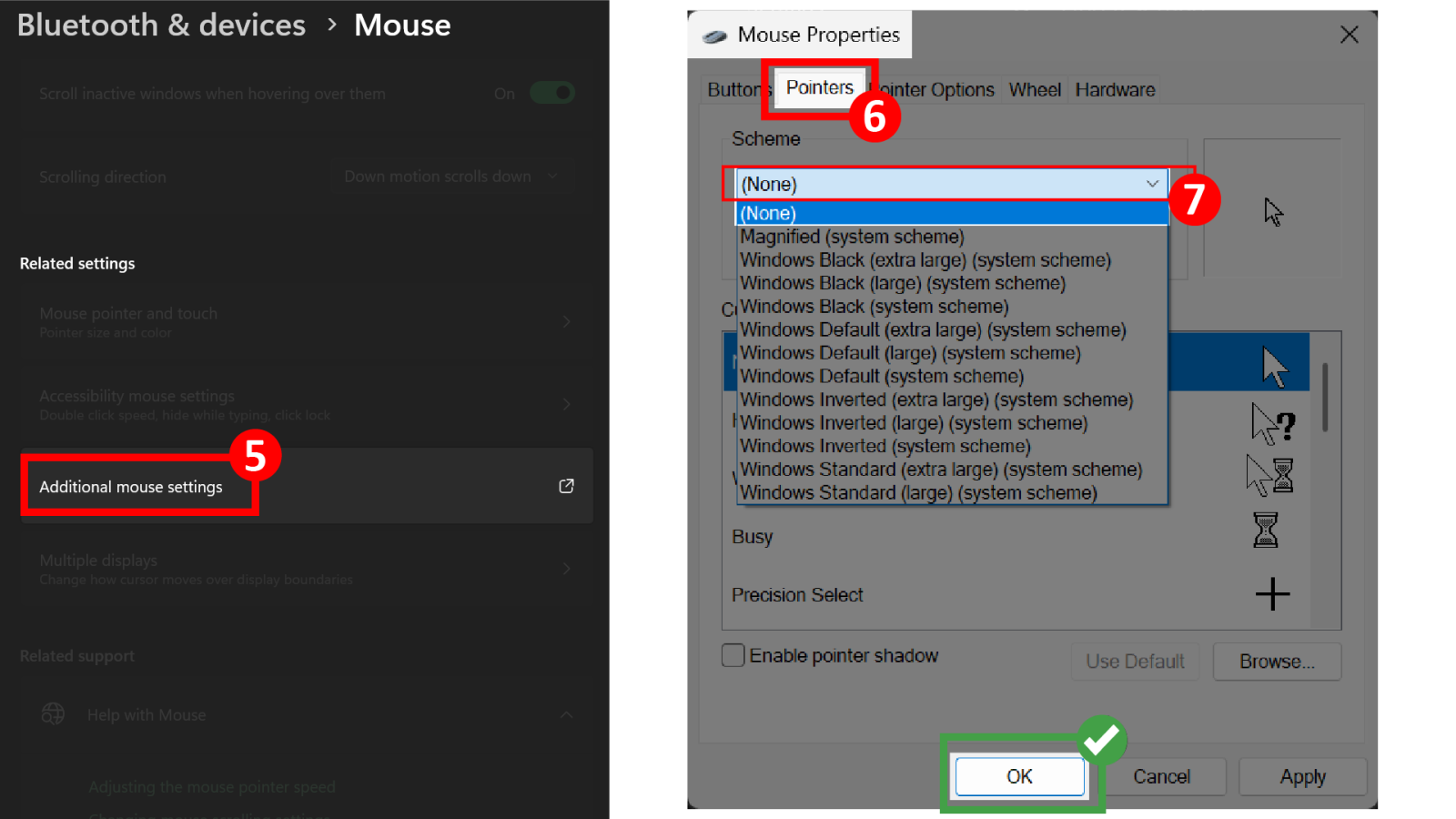
• Bước 5: Cuộn xuống phía dưới và chọn Additional mouse settings.
Step 5: Scroll down and select Additional mouse settings.
• Bước 6: Trong cửa sổ Mouse Properties, chọn tab Pointers.
Step 6: In Mouse Properties, click the Pointers tab.
• Bước 7: Tại mục Scheme, nhấn vào danh sách xổ xuống.
Step 7: Under Scheme, click the drop-down list.
• Chọn (none)
Select (none).
• Sau khi chọn xong, nhấn OK để lưu thay đổi.
After selecting, click OK to apply the changes.
Lưu ý quan trọng
Important notes
• Đây là bước bắt buộc trước khi mở Safe Exam Browser, vì ứng dụng không cho phép sử dụng chuột đã được chỉnh sửa giao diện.
This is a mandatory step before opening Safe Exam Browser, as the application does not allow the use of a mouse with modified interface settings.
KHÁC
- 1 . Hướng Dẫn Chỉnh Lại Chuột Về Mặc Định Trên Windows
- 2 . Cách Bật Windows Update
- 3 . Hướng Dẫn Sửa Lỗi Đen Màn Hình
- 4 . Hướng dẫn sửa lỗi Safe Exam Browser (SEB) – Prohibited Display Configuration
- 5 . Hướng dẫn gỡ cài đặt 360 Total Security hoàn toàn trên Windows
- 6 . Sơ đồ phòng học Đại học FPT HCM
- 7 . Sơ đồ phòng học Campus FPTU HCM
- 8 . Hướng dẫn cài đặt ứng dụng MyFPT Next dành cho giảng viên
- 9 . Hướng dẫn cài đặt SEB cho Edunext trên MacOS
- 10 . Hướng dẫn cài đặt SEB cho Edunext trên Windows