
Cách Bật Windows Update
 Bùi Trung Quân
1 phút đọc
3363 views
Bùi Trung Quân
1 phút đọc
3363 views
-1769077992.png)
Các bước bật Dịch Vụ Windows Update
Steps to Enable the Windows Update Service
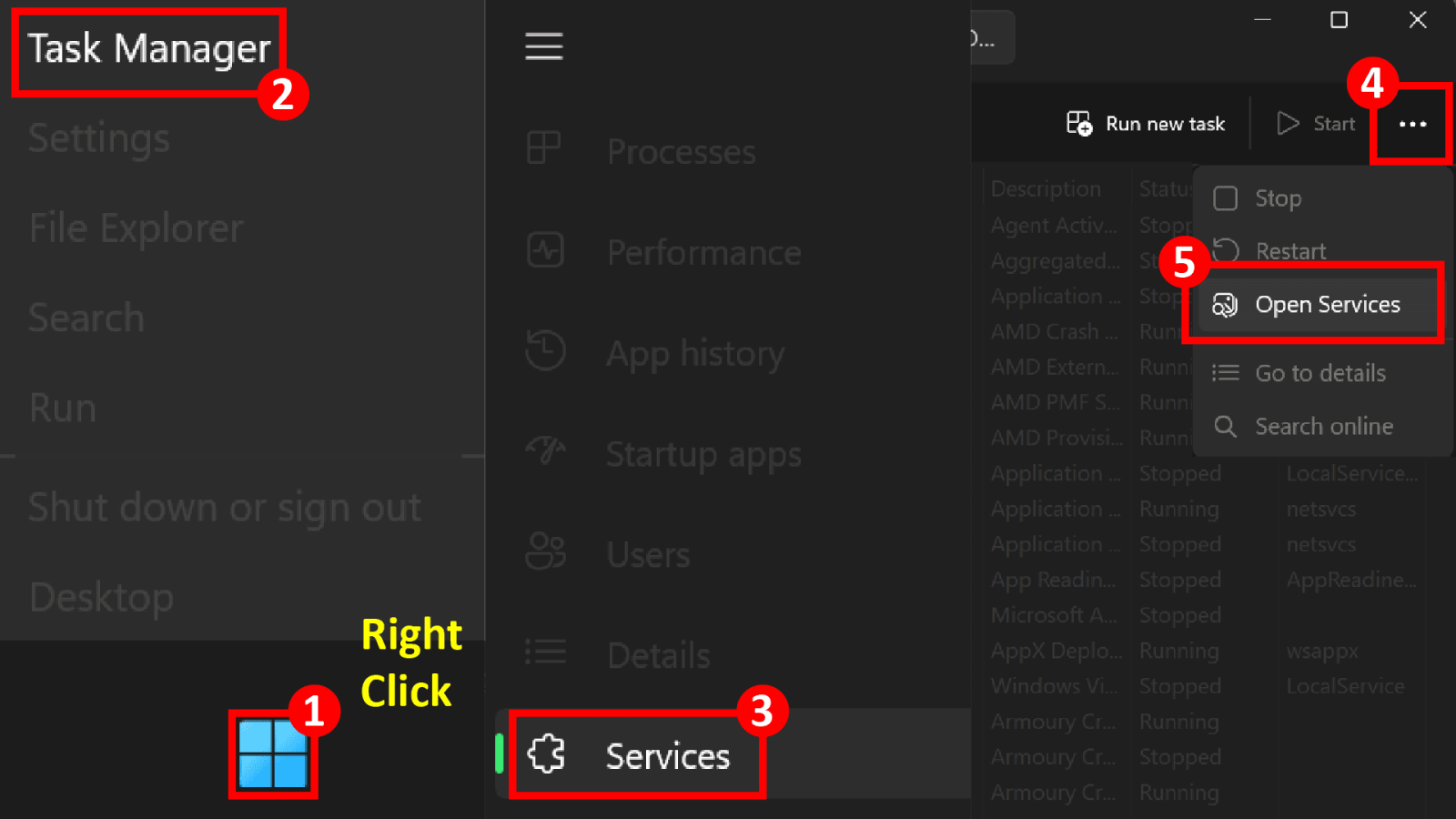
Mở Services từ Task Manager
open Services from Task Manager
• Bước 1: Chuột phải vào biểu tượng Windows ở góc dưới bên trái màn hình.
Right-click the Windows icon in the bottom-left corner.
• Bước 2: Chọn Task Manager.
Select Task Manager.
• Bước 3: Trong Task Manager, chọn mục Services ở thanh bên trái.
In Task Manager, select Services from the left sidebar.
• Bước 4: Nhấn vào biểu tượng ba chấm ( ... ) ở góc trên bên phải.
Click the three-dot icon ( ... ) in the top-right corner.
• Bước 5: Chọn Open Services để mở cửa sổ Services truyền thống của Windows.
Select Open Services to open the classic Windows Services window.
Kích hoạt dịch vụ Windows Update
Enable the Windows Update service
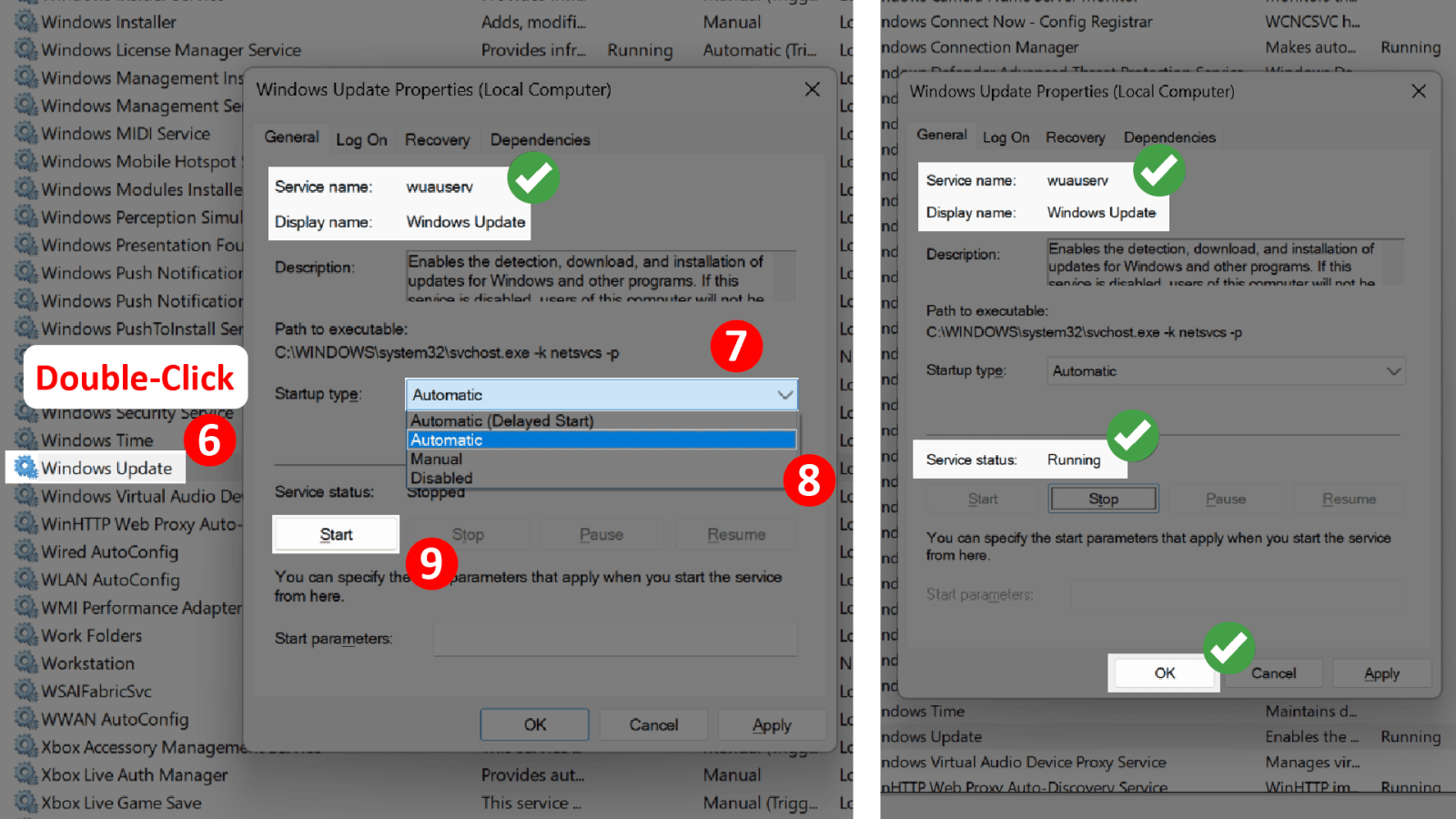
• Bước 6: Trong danh sách Services, tìm dịch vụ Windows Update.
In the Services list, locate Windows Update.
• Bước 7: Double-click vào Windows Update để mở cửa sổ Properties.
Double-click Windows Update to open the Properties window.
• Bước 8: Tại mục Startup type, chọn Automatic hoặc Automatic (Delayed Start).
In Startup type, select Automatic or Automatic (Delayed Start).
Khuyến nghị: Nên chọn Automatic để Windows Update khởi động cùng hệ thống.
Recommendation: Choose Automatic so Windows Update starts with the system.
• Bước 9: Nếu Service status đang là Stopped, nhấn Start để kích hoạt dịch vụ.
If the Service status is Stopped, click Start to activate the service.
Sau khi dịch vụ chuyển sang trạng thái Running, nhấn OK để lưu thay đổi.
Once the service status shows Running, click OK to save changes.
KHÁC
- 1 . Hướng Dẫn Chỉnh Lại Chuột Về Mặc Định Trên Windows
- 2 . Cách Bật Windows Update
- 3 . Hướng Dẫn Sửa Lỗi Đen Màn Hình
- 4 . Hướng dẫn sửa lỗi Safe Exam Browser (SEB) – Prohibited Display Configuration
- 5 . Hướng dẫn gỡ cài đặt 360 Total Security hoàn toàn trên Windows
- 6 . Sơ đồ phòng học Đại học FPT HCM
- 7 . Sơ đồ phòng học Campus FPTU HCM
- 8 . Hướng dẫn cài đặt ứng dụng MyFPT Next dành cho giảng viên
- 9 . Hướng dẫn cài đặt SEB cho Edunext trên MacOS
- 10 . Hướng dẫn cài đặt SEB cho Edunext trên Windows