
Hướng Dẫn Sửa Lỗi SEB Tổng Hợp
 Bùi Trung Quân
1 phút đọc
9962 views
Bùi Trung Quân
1 phút đọc
9962 views
Updating...
Lưu ý quan trọng
1. Khi đang mở Safe Exam Browser không được gập máy, lock máy để tránh bị lỗi hệ thống.
While Safe Exam Browser is running, do not close the laptop lid or lock the device to avoid system errors.
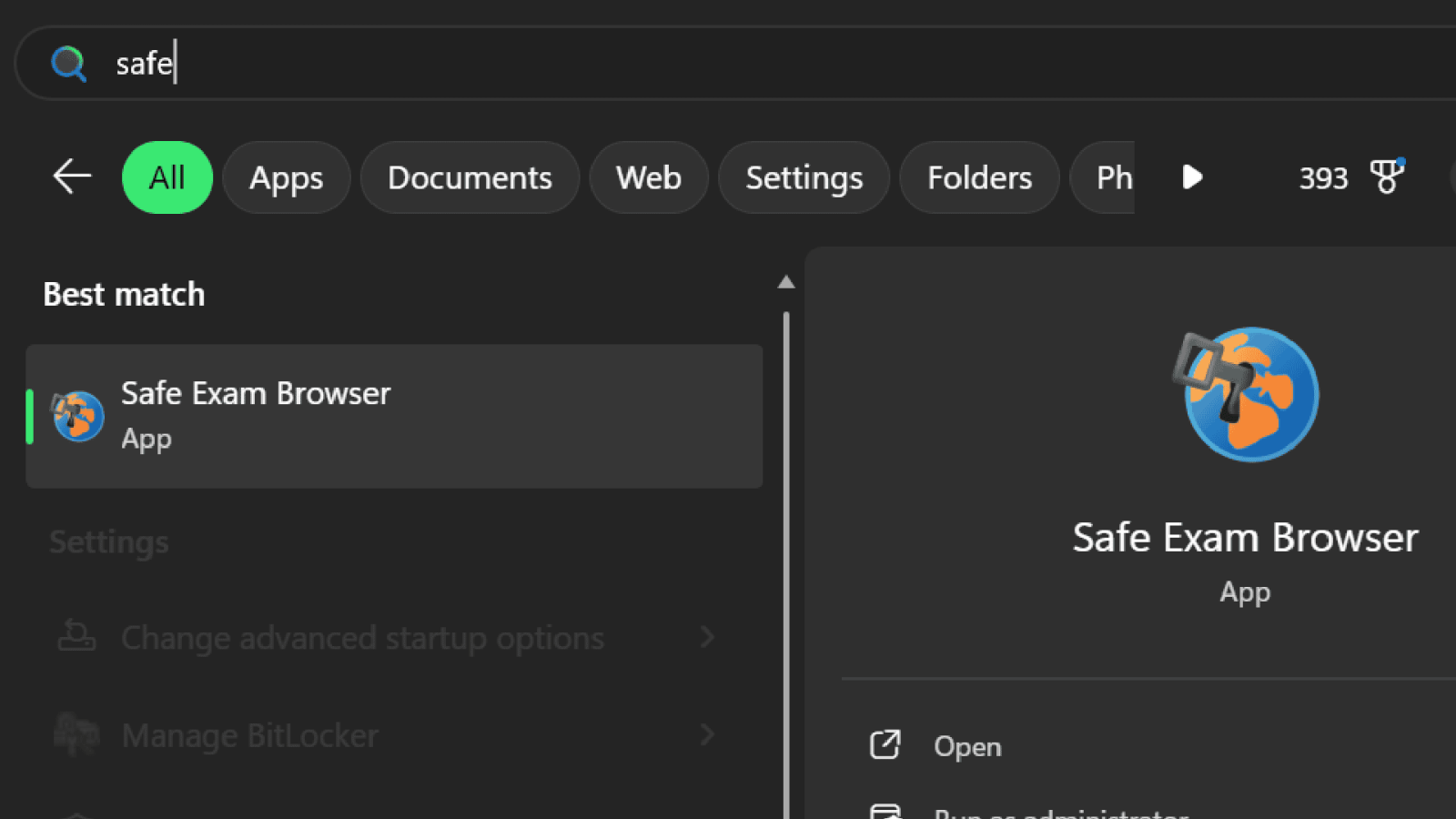
2. Để mở Safe Exam Browser, sinh viên vui lòng tìm kiếm từ khoá "Safe" chứ không tìm từ khoá "SEB"
To open Safe Exam Browser, please search for the keyword “Safe” instead of “SEB”.
Bộ công cụ sửa lỗi Safe Exam Browser
Safe Exam Browser Repair Toolkit
Download --> Link
1. Gỡ cài đặt Safe Exam Browser
Uninstall Safe Exam Browser
Phần 1: Gỡ cài đặt Safe Exam Browser bằng Windows Settings
Part 1: Uninstall Safe Exam Browser via Windows Settings
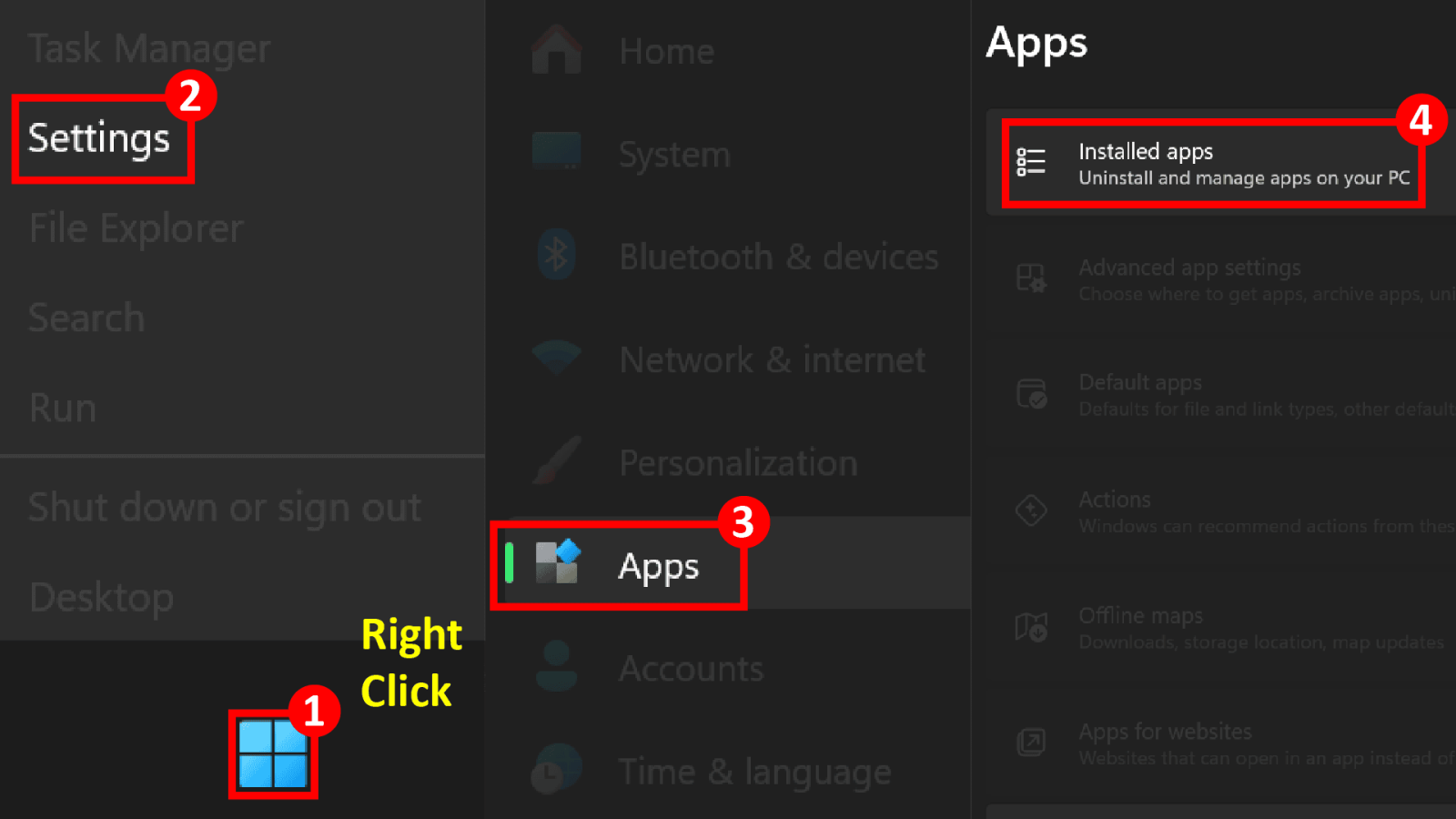
• Bước 1: Chuột phải vào biểu tượng Windows ở góc dưới bên trái màn hình và chọn Settings.
Right-click the Windows icon in the bottom-left corner and select Settings.
• Bước 2: Trong cửa sổ Settings, chọn mục Apps.
In the Settings window, select Apps.
• Bước 3: Tiếp tục chọn Installed apps.
Next, choose Installed apps.
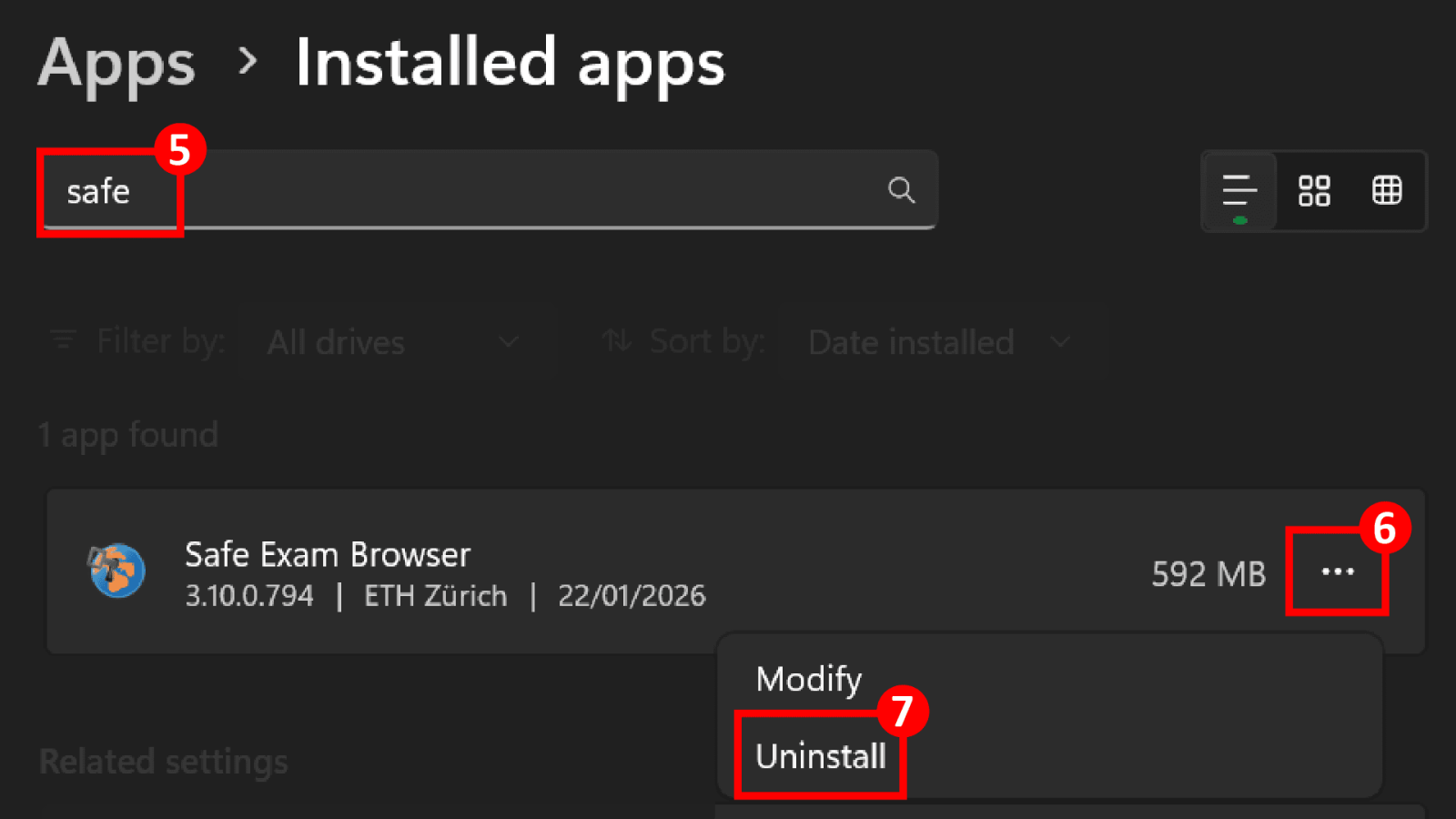
• Bước 4: Tại ô tìm kiếm danh sách ứng dụng, nhập từ khoá safe để tìm Safe Exam Browser.
In the app search box, type "safe" to locate Safe Exam Browser.
• Bước 5: Khi Safe Exam Browser xuất hiện, nhấn vào biểu tượng ba chấm ( ... ) bên phải ứng dụng.
When Safe Exam Browser appears, click the three-dot icon ( ... ) on the right.
• Bước 6: Chọn Uninstall để bắt đầu quá trình gỡ cài đặt.
Select Uninstall to start the removal process.
• Bước 7: Cửa sổ gỡ cài đặt SEB xuất hiện, tiếp tục nhấn Uninstall để xác nhận.
When the SEB uninstaller window appears, click Uninstall to confirm.
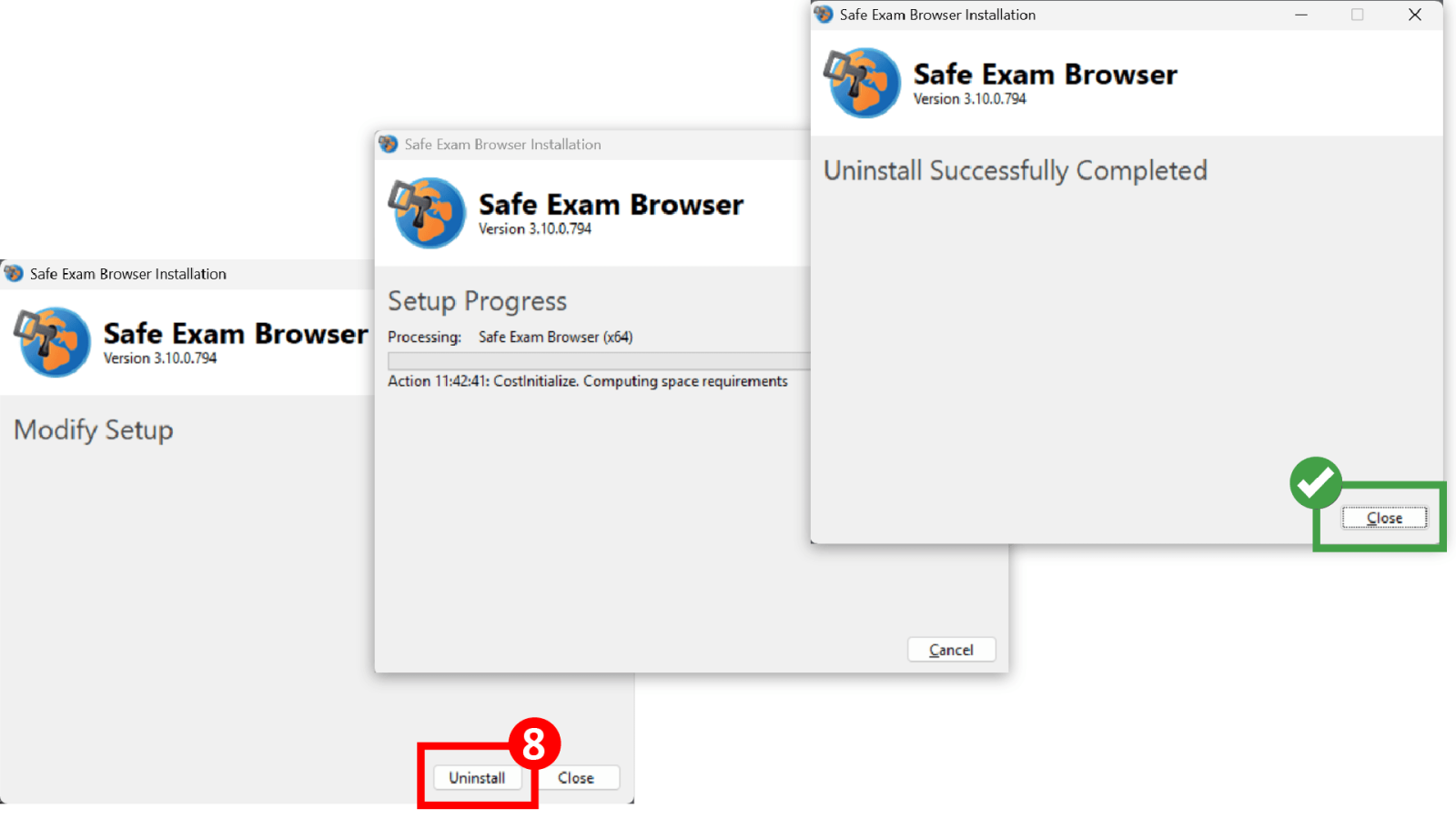
• Bước 8: Sau khi hệ thống hiển thị thông báo Uninstall Successfully Completed, nhấn Close để kết thúc.
Once the message Uninstall Successfully Completed appears, click Close to finish.
• Lưu ý: Việc gỡ cài đặt ở bước này chỉ xoá chương trình chính, chưa xoá hoàn toàn dữ liệu người dùng và thư mục cấu hình của SEB, cần thực hiện thêm phần 2.
Note: This step only removes the main application and does not fully delete user data and configuration folders, need to do part 2.
Phần 2: Chạy file remore_seb.exe để xoá dữ liệu SEB còn sót
Part 2: Run remore_seb.exe to remove remaining SEB data
• Bước 1: Tải file 1 remore_seb.exe.
Download 1 remore_seb.exe.
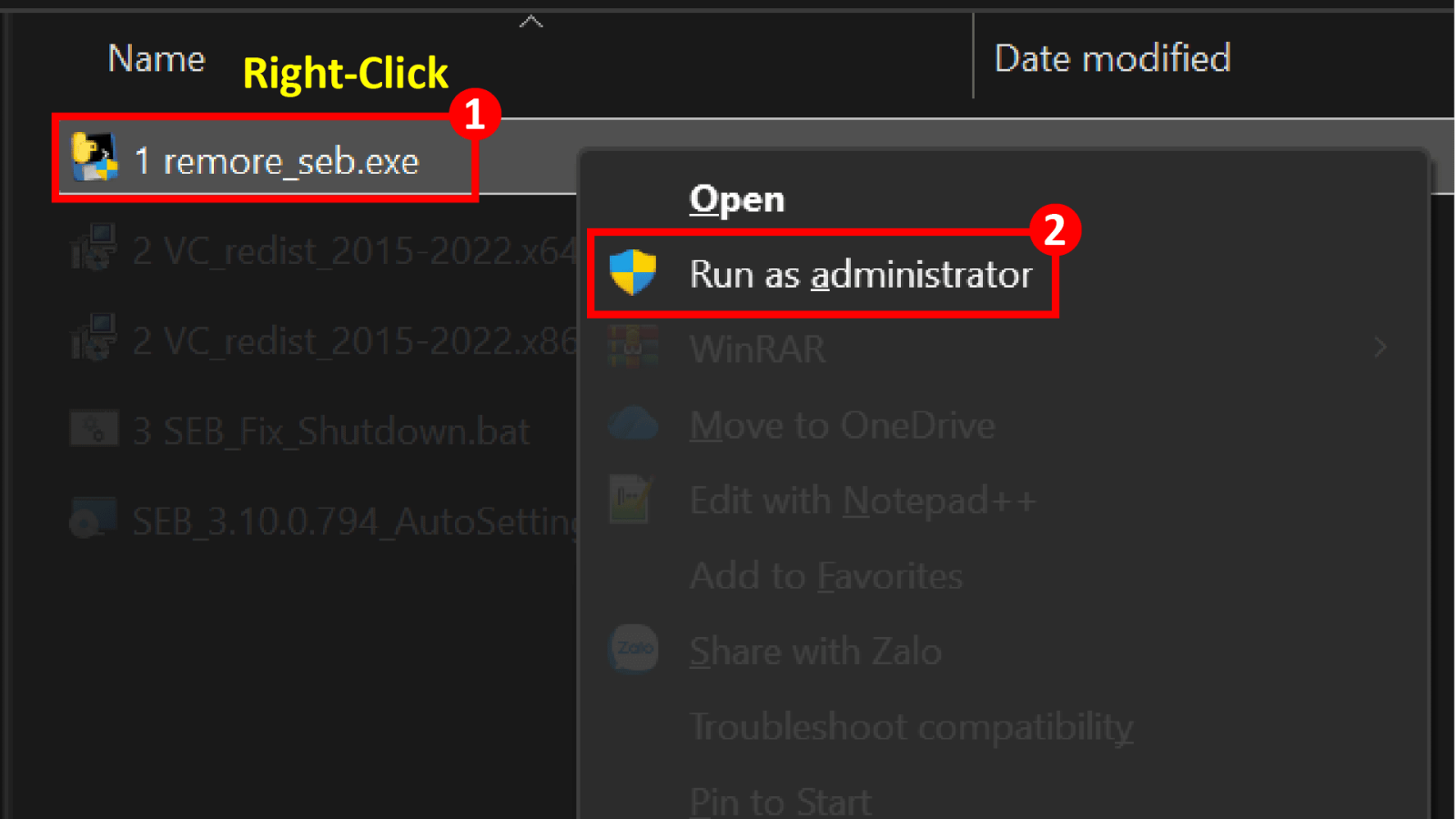
• Bước 2: Chuột phải vào file 1 remore_seb.exe và chọn Run as administrator.
Right-click 1 remore_seb.exe and select Run as administrator.
• Bước 3: Công cụ sẽ tự động kiểm tra và xoá các thư mục liên quan đến Safe Exam Browser trong hồ sơ người dùng.
The tool will automatically scan and delete Safe Exam Browser directories in the user profile.
• Nếu ở bước này, cửa sổ CMD hiện lên nhưng không thấy chữ gì hiện ra, hãy ấn phím "Space" vài lần đến khi có chữ hiện ra là được.
If at this step the Command Prompt window appears but no text is displayed, press the “Space” key several times until the text appears.
• Bước 4: Khi xuất hiện thông báo Successfully deleted, quá trình xoá đã hoàn tất.
When messages such as Successfully deleted appear, the removal is complete.
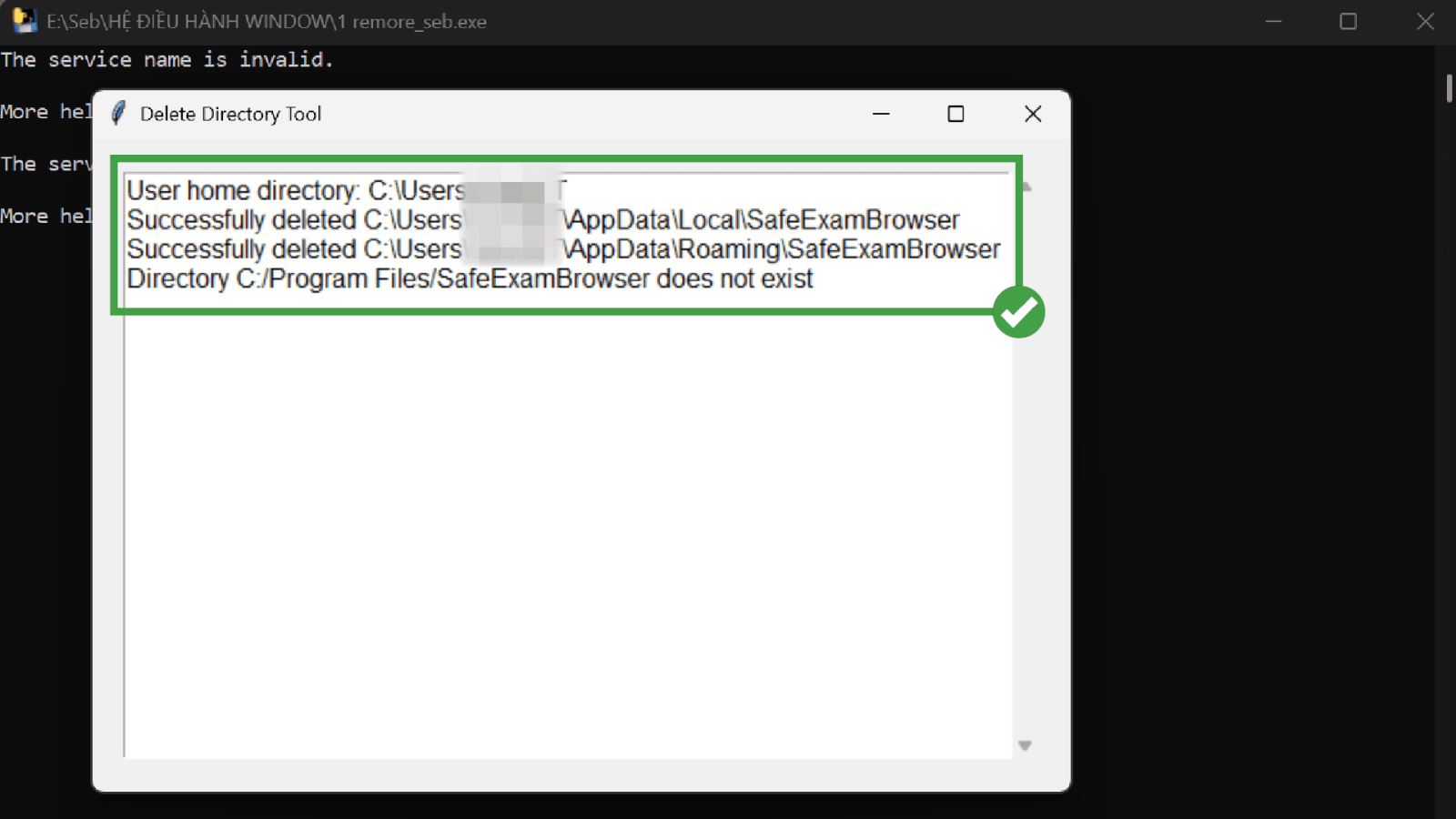
• Lưu ý: Nếu hiển thị thông báo Directory does not exist, điều này có nghĩa là thư mục đã được xoá trước đó và không phải lỗi.
If the message Directory does not exist appears, it means the folder was already removed and this is not an error.
2. Cài đặt Microsoft Visual C++ (x64 và x86)
Install Microsoft Visual C++ (x64 and x86)
• Lưu ý quan trọng: Bắt buộc phải cài cả hai phiên bản x64 và x86, ngay cả khi máy đang sử dụng Windows 64-bit.
Important note: You must install both x64 and x86 versions, even if the system is running 64-bit Windows.
• Bước 1: Chuột phải vào file 2 VC_redist_2015-2022.x64.exe và chọn Run as administrator.
Right-click 2 VC_redist_2015-2022.x64.exe and select Run as administrator.
• Bước 2: Khi cửa sổ cài đặt xuất hiện, tích chọn mục I agree to the license terms and conditions.
When the installer opens, check I agree to the license terms and conditions.
• Bước 3: Nhấn Install để bắt đầu cài đặt.
Click Install to start the installation.
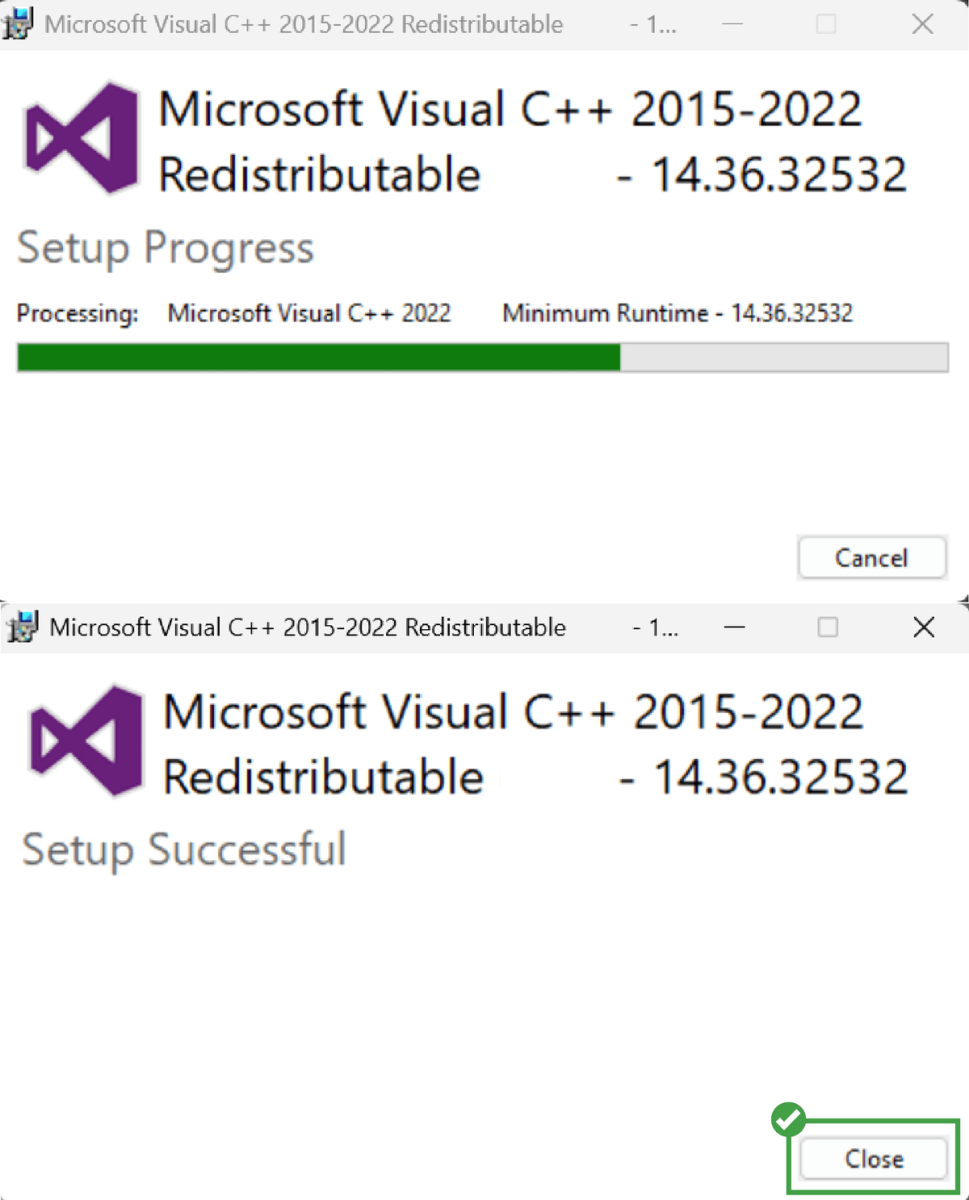
• Bước 4: Chờ quá trình cài đặt hoàn tất và xuất hiện thông báo Setup Successful.
Wait until the process finishes and the message Setup Successful appears.
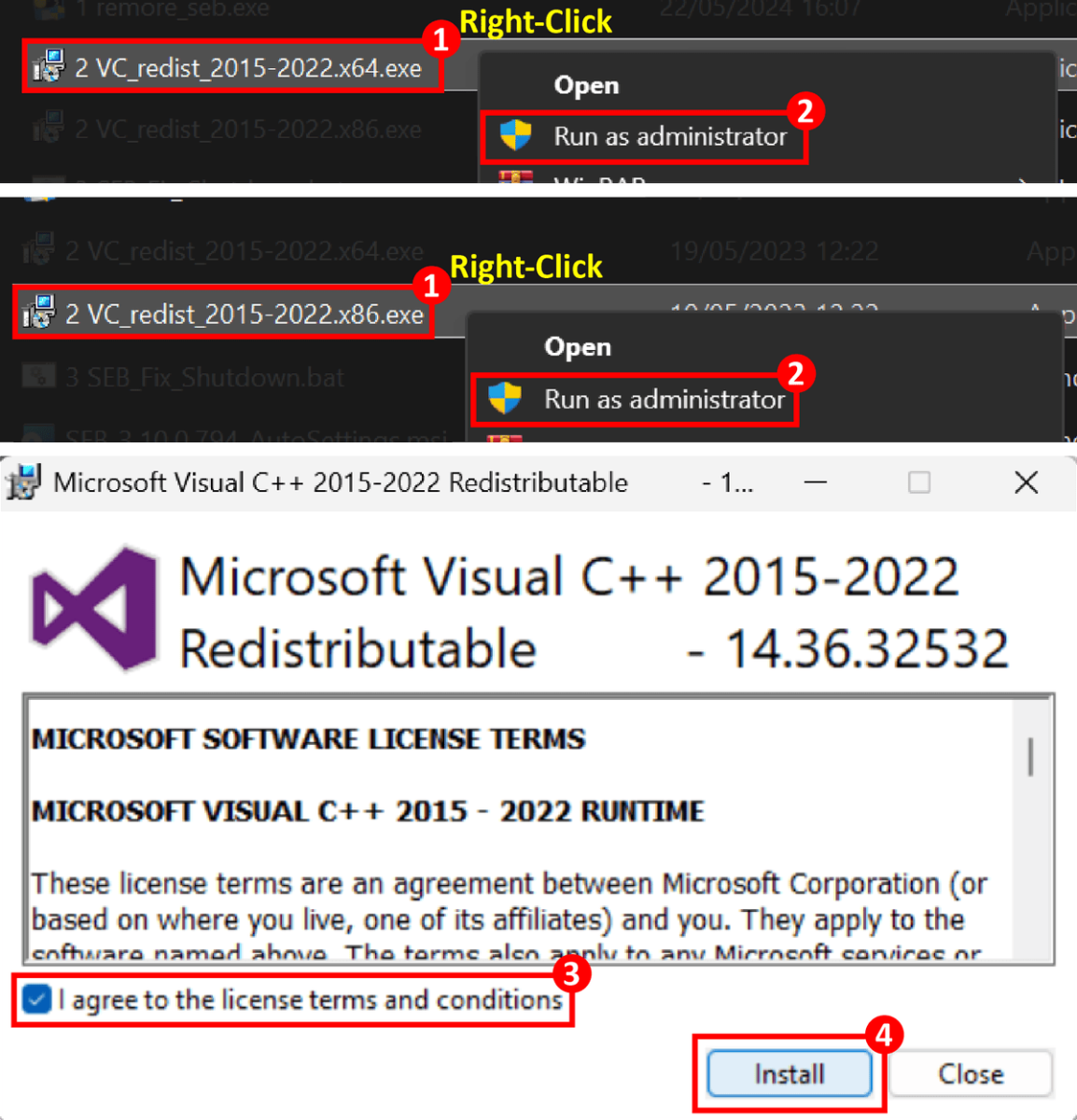
• Bước 5: Lặp lại tương tự với 2 VC_redist_2015-2022.x86.exe.
Repeat the same steps with 2 VC_redist_2015–2022.x86.exe.
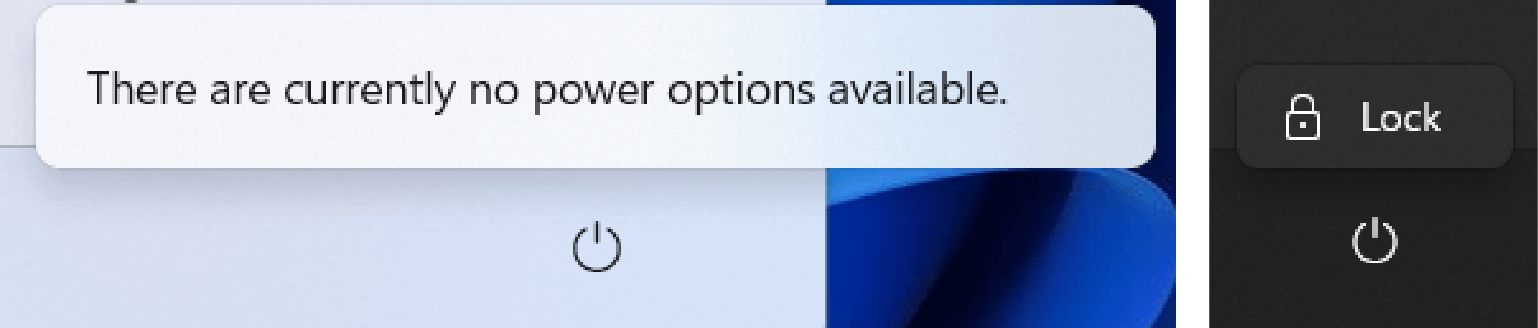
3. Sửa lỗi mất nút Shut Down
Fix missing Shut Down option
• Bước 1: Tải file 3 SEB_Fix_Shutdown.bat
Download file 3 SEB_Fix_Shutdown.bat .
• Bước 2: Chuột phải vào file 3 SEB_Fix_Shutdown.bat và chọn Run as administrator.
Right-click 3 SEB_Fix_Shutdown.bat and select Run as administrator.
• Bước 3: Sau khi script chạy xong, hẫy ấn phím "Space" để hệ thống tự tắt máy, khi mở lại máy sẽ xuất hiện lại các nút nguồn.
After the script finishes running, press the “Space” key to let the system shut down automatically. When you turn the computer back on, the power options will be restored.
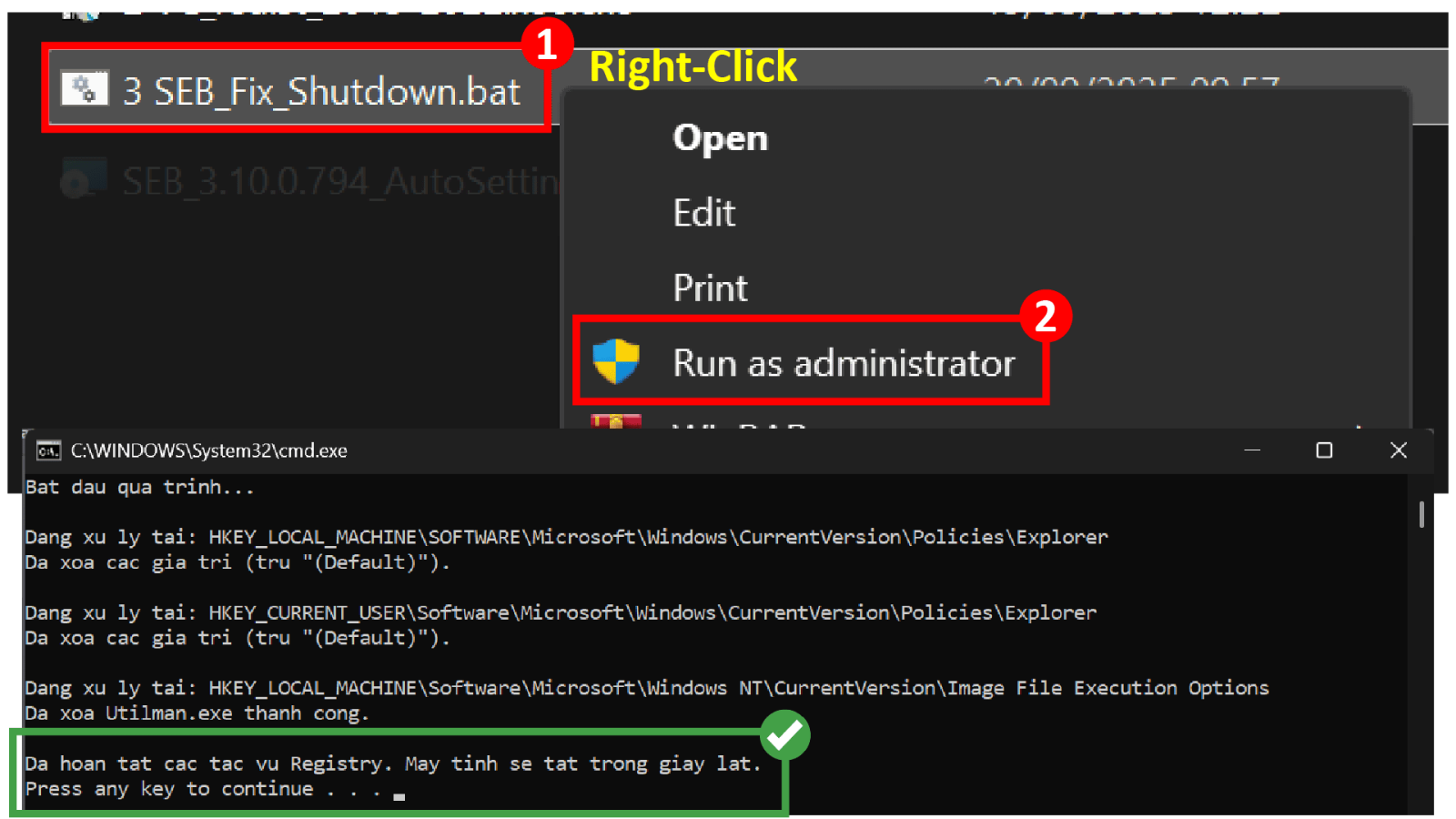
• Lưu ý: Bắt buộc phải chạy bằng quyền Administrator, nếu không script sẽ không chỉnh sửa được Registry hệ thống.
Note: Running as administrator is mandatory, otherwise the script cannot modify system registry keys.
4. Một số lỗi khác
Other Issues
4.1 Two logs
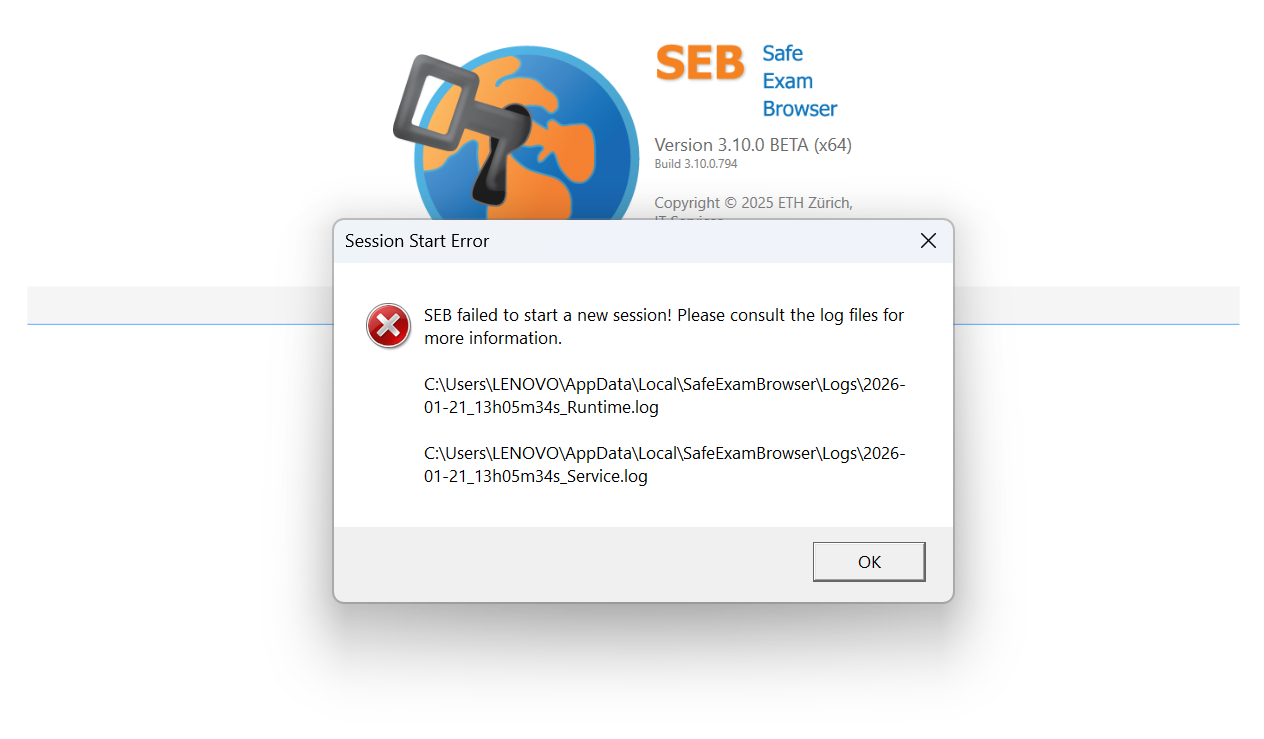
• Cách 1: Hướng dẫn gỡ cài đặt 360 Total Security hoàn toàn trên Windows
Option 1: How to Completely Uninstall 360 Total Security on Windows
• Cách 2: Cách Bật Windows Update
Option 2: How to Enable the Windows Update Service
4.2 Prohibited Display Configuration
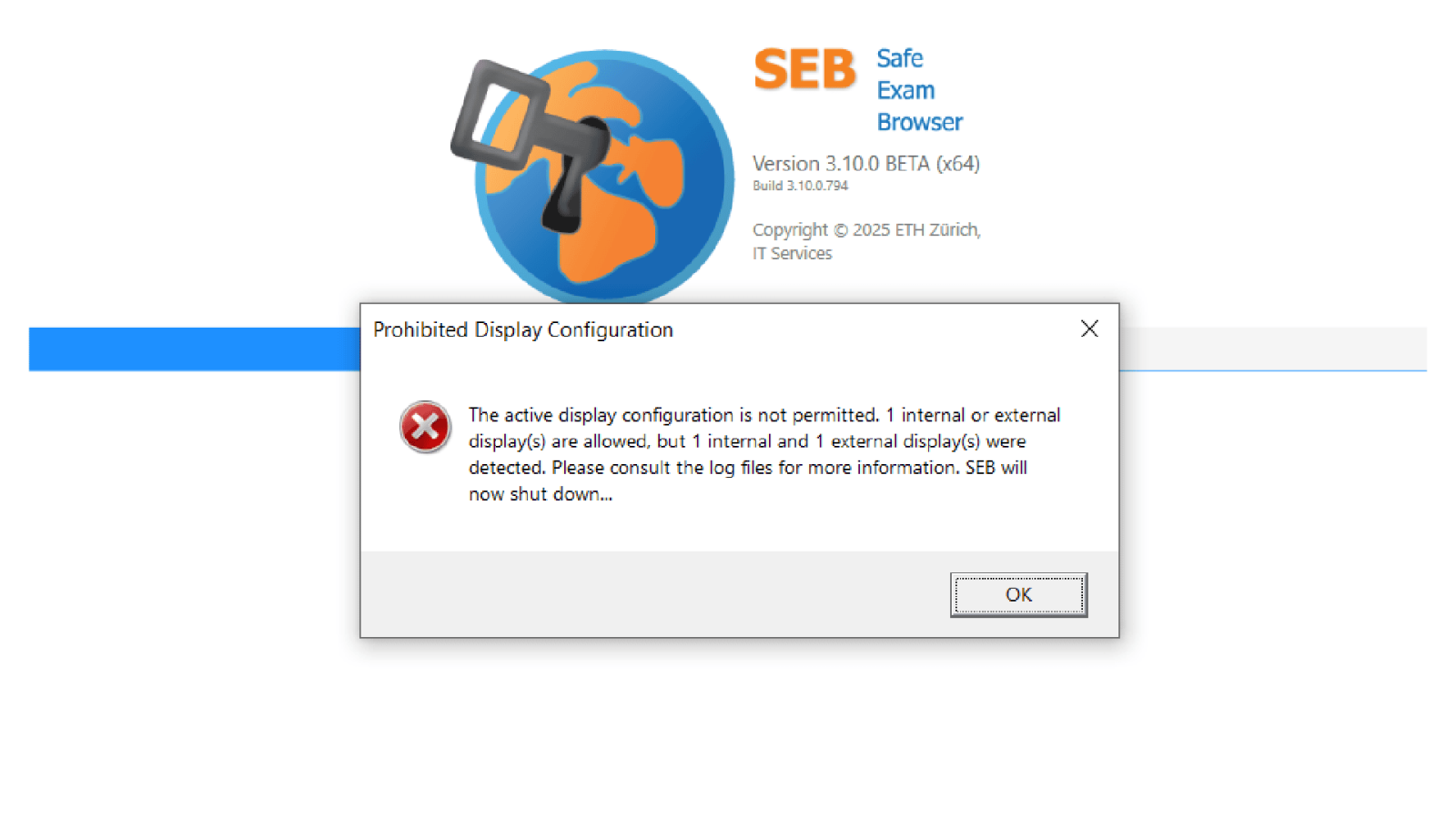
• Hướng dẫn sửa lỗi Safe Exam Browser (SEB) – Prohibited Display Configuration
How to Fix Safe Exam Browser (SEB) Error – Prohibited Display Configuration
4.3 Black Screen
• Hướng Dẫn Sửa Lỗi Đen Màn Hình
How to Fix the Black Screen Error
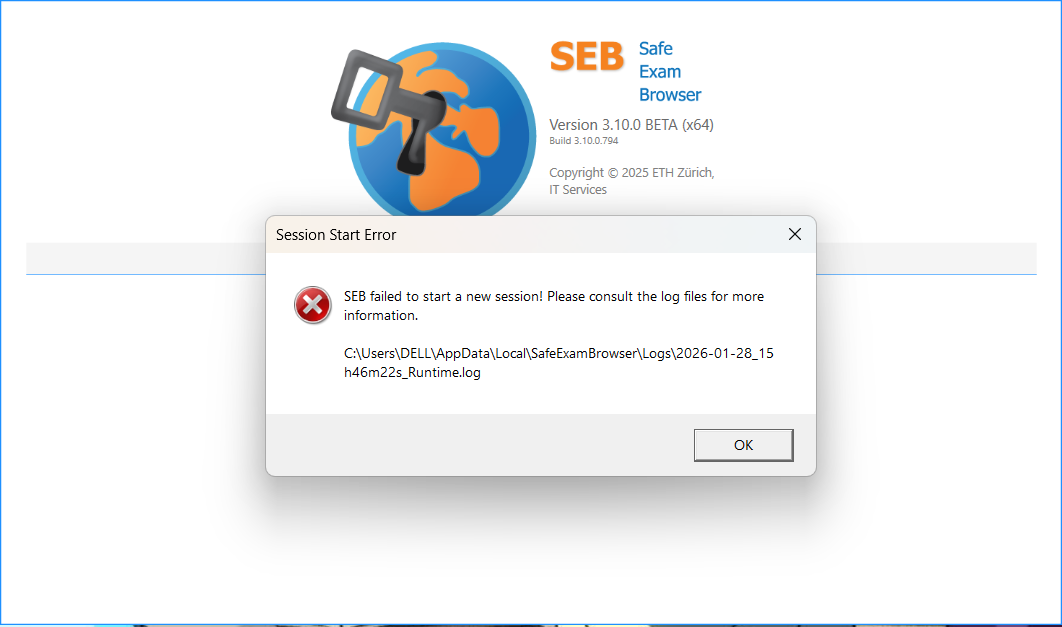
4.4 One log
• Thực hiện các mục 1, 2 và 3 ở trên. Sau đó chạy lại file cài đặt SEB_3.10.0.794_AutoSettings.msi
Follow steps 1, 2, and 3 above. Then re-run file SEB_3.10.0.794_AutoSettings.msi to install
• Hướng Dẫn Chỉnh Lại Chuột Về Mặc Định Trên Windows
Guide to Restore Default Mouse Settings on Windows