
Hướng Dẫn Tắt Bitlocker Trên Windows
 Bùi Trung Quân
5 phút đọc
16406 views
Bùi Trung Quân
5 phút đọc
16406 views
-1764386975.png)
BitLocker là gì? Vì sao nên tắt BitLocker trước khi tham gia kỳ thi?
What is BitLocker? Why should you turn it off before taking the exam?
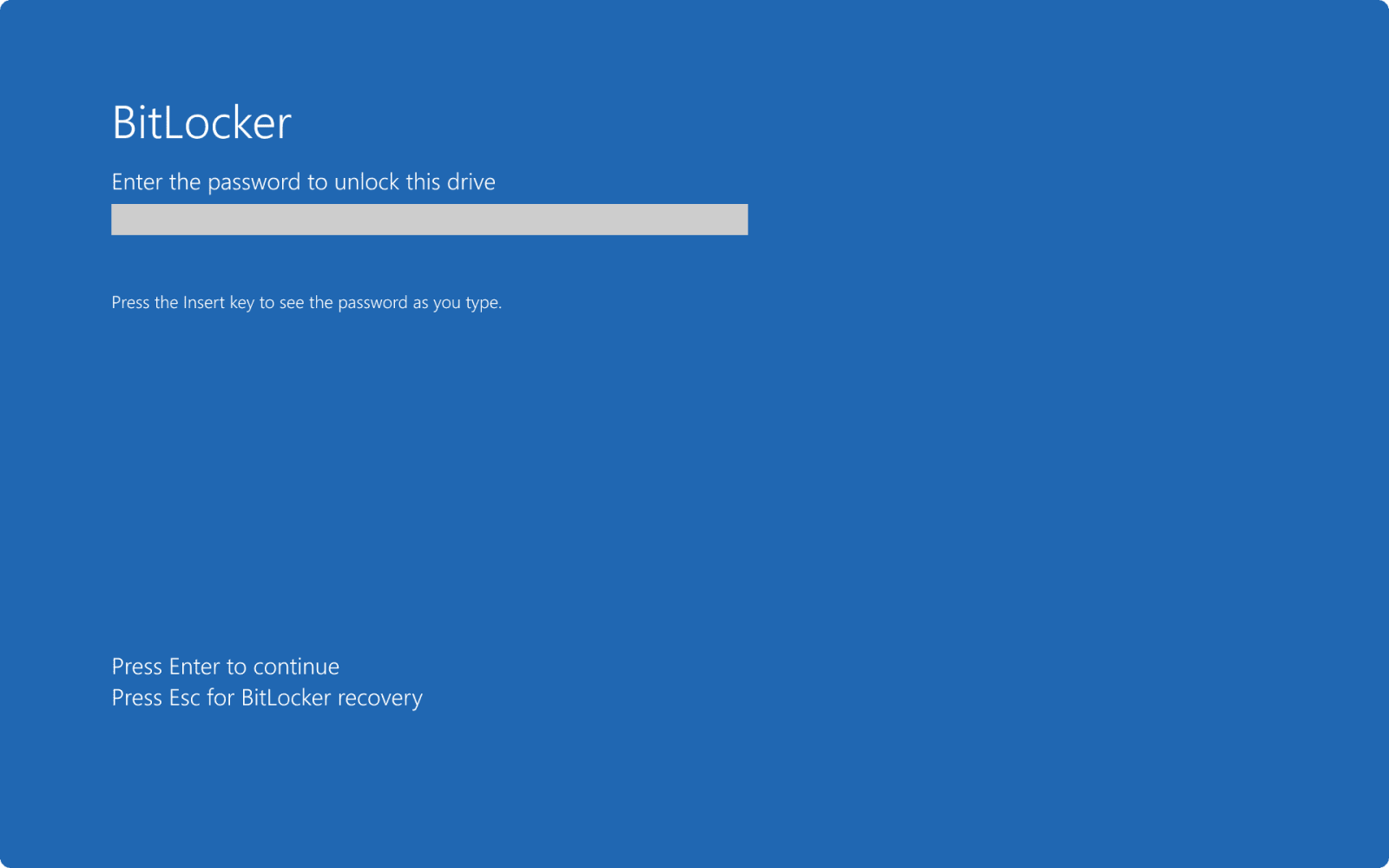
BitLocker là tính năng mã hóa dữ liệu của Windows, dùng để bảo vệ ổ đĩa bằng mật khẩu hoặc khóa khôi phục. Tuy nhiên, trong một số trường hợp khi sinh viên khởi động lại máy sau khi thi, hệ thống có thể tự kích hoạt BitLocker trên ổ cứng. Khi đó, Windows sẽ yêu cầu mật khẩu BitLocker. Phần lớn sinh viên không biết hoặc không lưu khóa khôi phục, dẫn đến không thể vào lại Windows và có nguy cơ mất dữ liệu quan trọng. Vì vậy, nhà trường khuyến nghị sinh viên tắt BitLocker trước kỳ thi để tránh lỗi phát sinh không mong muốn và đảm bảo an toàn dữ liệu.
BitLocker is a Windows feature that encrypts your drive and protects it using a password or recovery key. However, in some situations after restarting the computer, the system may automatically activate BitLocker on the internal drive. When this happens, Windows will ask for a BitLocker password. Most students do not know or do not have the recovery key saved, which can prevent them from accessing Windows and may cause unexpected data loss. Therefore, the school recommends that students disable BitLocker before the exam to avoid issues and ensure their data remains safe.
Cách 1: Tắt BitLocker bằng Settings (cách dễ nhất)
Method 1: Turn Off BitLocker via Settings (easiest way)
Bước 1: Mở Settings
Step 1: Open Settings
Nhấn chuột phải vào Windows → Settings.
Right click Windows → Settings.
Bước 2: Chọn Privacy & security
Step 2: Choose Privacy & security
.png)
Bước 3: Chọn Device Encryption
Step 3: Select Device Encryption
Nếu thấy mục Device Encryption đang ON, hãy gạt sang OFF.
If Device Encryption is ON, switch it to OFF.
.png)
Bước 4: Chờ Windows giải mã ổ đĩa
Step 4: Wait for Windows to decrypt the drive
Sau khi hoàn tất → BitLocker được tắt hoàn toàn.
Once finished, BitLocker will be fully disabled.
Cách 2: Tắt BitLocker bằng Control Panel
Method 2: Turn Off BitLocker via Control Panel
Bước 1: Mở Control Panel
Step 1: Open Control Panel
Nhấn Win + R → gõ: control → Enter.
Bước 2: Chọn System and Security
Step 2: Select System and Security

Bước 3: Chọn BitLocker Drive Encryption
Step 3: Choose BitLocker Drive Encryption
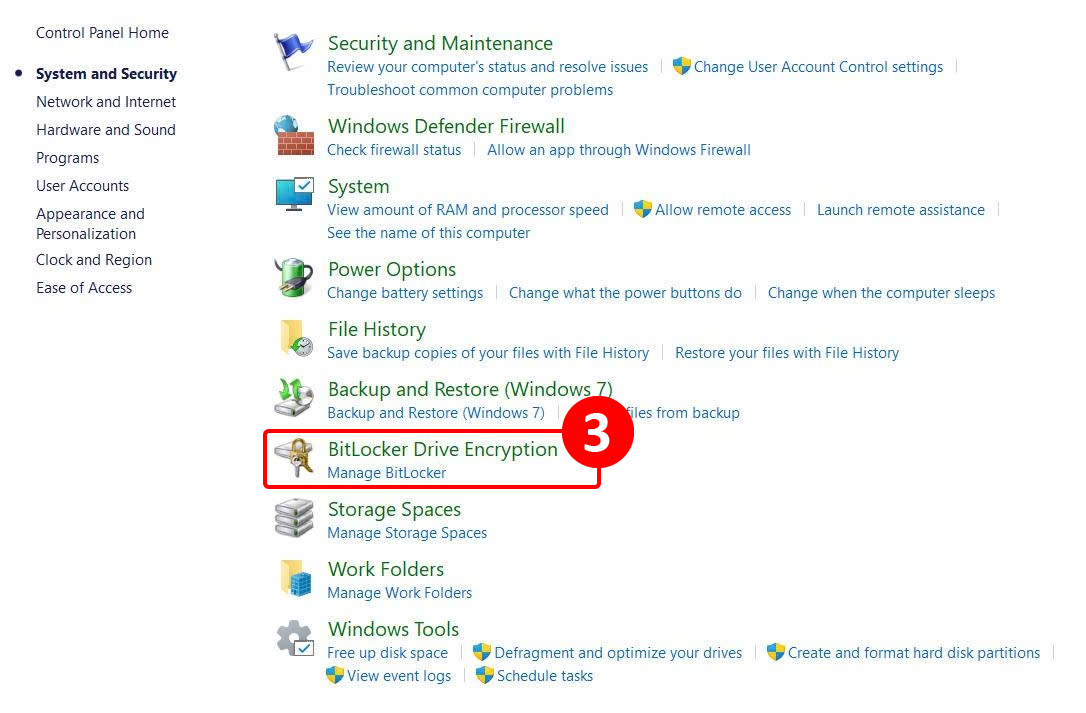
Bước 4: Tắt BitLocker
Step 4: Turn off BitLocker

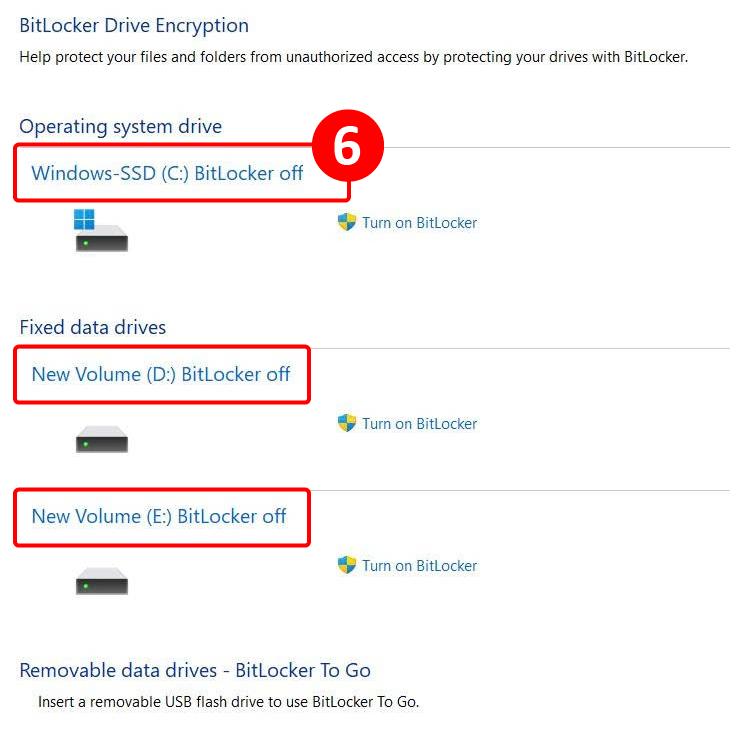
Chọn Turn off BitLocker tại ổ muốn tắt (thường là ổ C).
Click Turn off BitLocker on the drive you want (usually C:).

Tiếp tục chọn Turn off BitLocker để xác nhận.
Confirm by clicking Turn off BitLocker again.
PHẦN MỀM THI
- 1 . Hướng Dẫn Thi Trên USB
- 2 . Hướng Dẫn Tắt Bitlocker Trên Windows
- 3 . Hướng dẫn sinh viên truy cập Bios & menu Boot trên các dòng laptop
- 4 . Hướng dẫn thi thử bằng phần mềm Thi EOS | How to test the examination software
- 5 . Download FPTU EOS PEA SPK
- 6 . Hướng dẫn tắt tính năng tự động truy cập WiFi
- 7 . Install and login to the examination software of FPT university
- 8 . Video Hướng Dẫn Sử Dụng Phần Mềm Thi
- 9 . Hướng dẫn sử dụng phần mềm thi EOS_Client | How to login to the examination software EOS_Client