
FPTU-CAMPUS HCM information technology system
 Võ Anh Thiện
10 phút đọc
7206 views
Võ Anh Thiện
10 phút đọc
7206 views
(English version)
1. Accounts
Each FPTU-HCM student will be provided 1 particular account for:
– Internal System Account: Used for authentication on WiFi systems, exam software (EOS_Client, PEA_Client, etc.), and the learning management system (lms-hcm.fpt.edu.vn).
– FEID Account: Used to log into information systems such as fap.fpt.edu.vn and fu-edunext.fpt.edu.vn.
Note: To ensure safety and security, the system automatically establishes the following policies:
⇒ The account will be automatically locked if the user enters the wrong password more than 03 times.
⇒ Do not set a new password that is the same as the old one.
⇒ The password must be a minimum of 8 characters and include the following characters:
• Uppercase English characters (A-Z)
• Lowercase English characters (a-z)
• Digits (0-9)
• Special characters (@ # $ % * ( ) ^ ! & ~ + - =…)
⇒ The password must not contain the full name or student ID.
2. IT Support Services:
1) The IT Support Office in Room 102 provides the following services:
► Guidance on computer registration and WiFi connection issues.
► Support for account/password issues.
► Support for exam software issues.
► Support for troubleshooting simple application errors that have been identified.
2) The Website: https://it-hcm.fpt.edu.vn/ provides the following:
→ Displays important announcements related to exam software updates and WiFi.
→ Updates important guidance documents.
→ Function to register a laptop for WiFi use without visiting the IT office.
→ Function for students to change their own WiFi password.
→ Function to retrieve a new WiFi account password if the old one is forgotten.
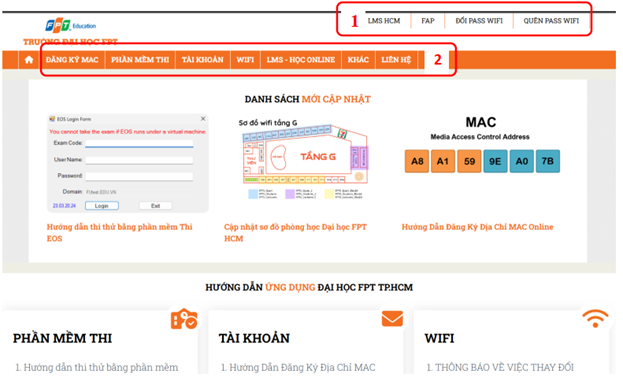
3. Instructions for Handling WiFi Password Change or Reset:
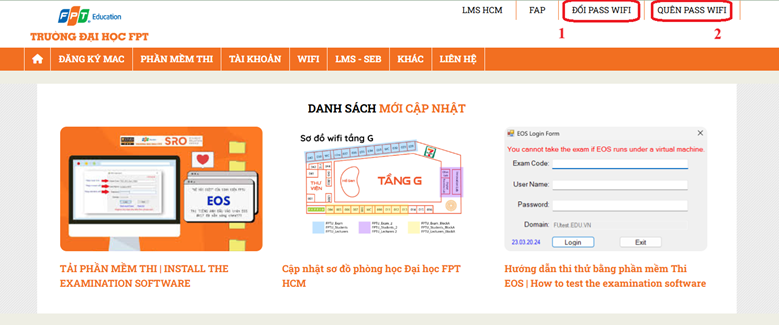
1) Change WiFi Password
- Access the website: https://it-hcm.fpt.edu.vn/. Select “ĐỔI PASS WIFI” (CHANGE WIFI PASS) to go to the password change page.
- Here, you will fill in the required information as instructed:
• Username: Your provided WiFi account.
• Old password: Your old password.
• New password: The new password must comply with the password policy mentioned.
• Confirm password: Re-enter the new password to confirm.
• Click "I’m not a robot" confirmation and “Submit”.
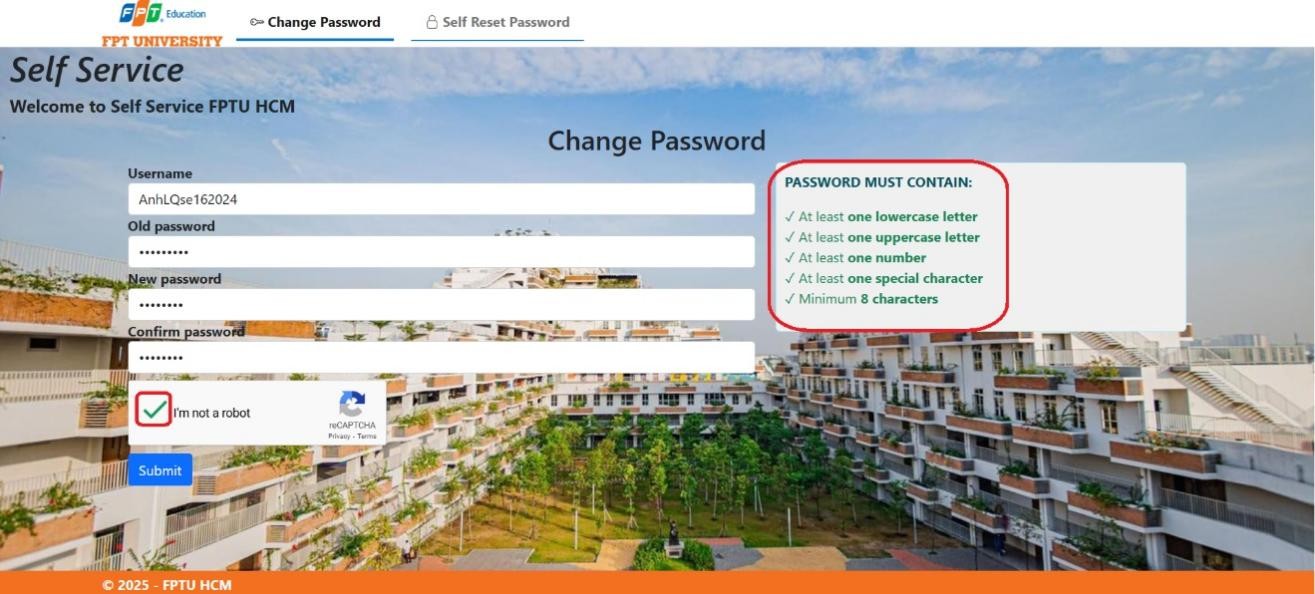
- After the “Submit” process is complete (as shown in the image), your password has been successfully changed.

2) Forget WiFi Password: When you need to recover your WiFi password but cannot remember the old one.
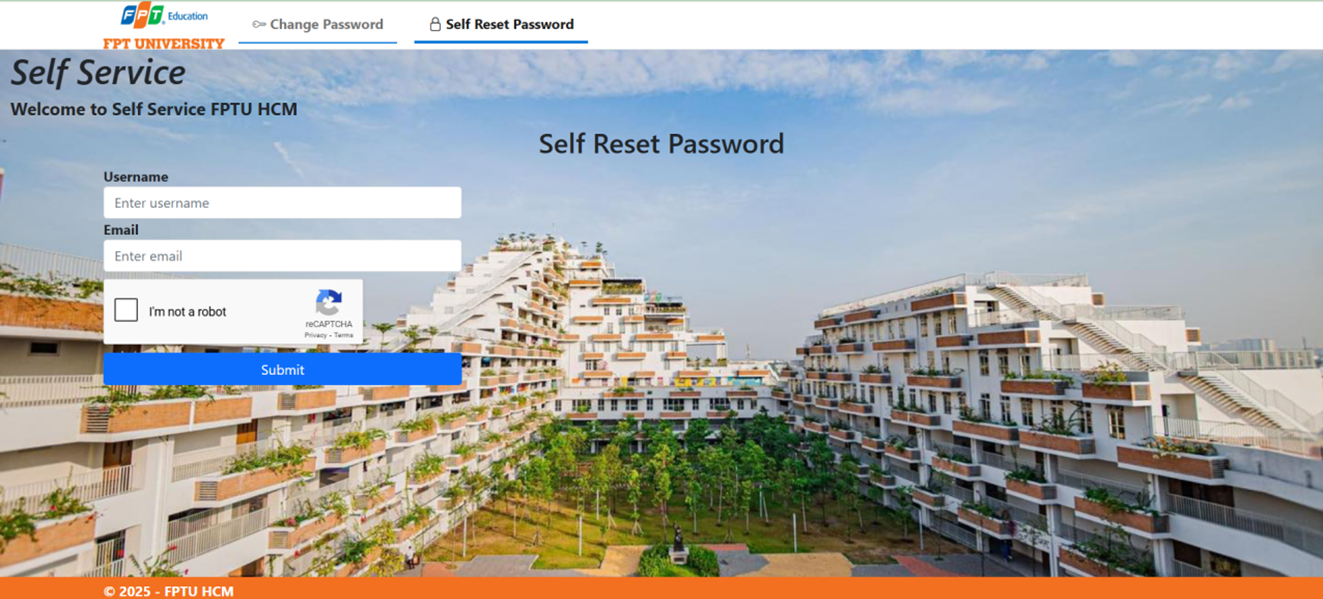
Step 1: Fill in the required information:
• Username: Your WiFi account.
• Email: The email address you registered with the university.
• Click "I’m not a robot" confirmation and “Submit”.
After the message asking you to check your email inbox appears, if you do not receive the password reset email, press reload and repeat this step.
Step 2: Check the Email from it.fptuhcm.

Step 3: Open the email and select “Reset Password”.

On the Reset Password page, enter the new WiFi password in compliance with the security policy.

After setting the new password, select “I’m not a robot” and select “Submit”.

You have successfully changed your password. If an error occurs, please check the password policy again.
Step 4: Verify the password change was successful.
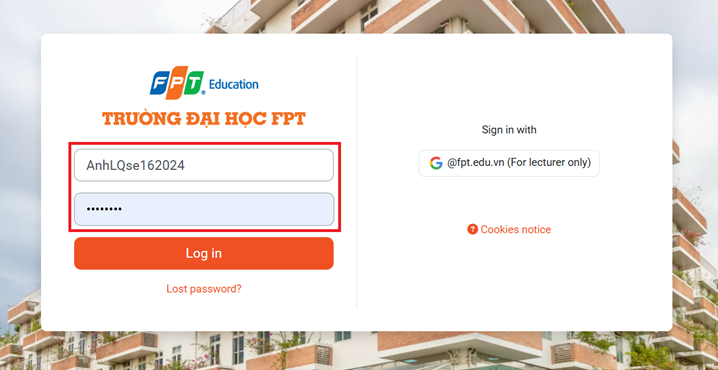
Log in at https://lms-hcm.fpt.edu.vn with the new password. If the login is successful, the password is correct.
4. Suggested Minimum Laptop Configuration:
1) Law, Business Administration, Languages, Public Relations (Communication Technology) Groups:
Minimum Configuration:
• Intel Core i3 or Ryzen 3 or higher.
• At least 256GB SSD.
• RAM ≥ 8GB.
• Intel WiFi card AC standard or newer.
Some suggested models:
.png)
Acer Aspire Lite 16 Gen 2 Laptop:
• CPU: Intel Core i5-1334U.
• RAM: 16 GB, DDR5, 4800 MHz.
• Storage: SSD 512 GB.
• WiFi card: WiFi 802.11ax.
.png)
DELL INSPIRON 14 Laptop:
• CPU: Intel Core i51334U.
• RAM: 16GB DDR5, 4400 MHz.
• Storage: 512 GB M.2 PCIe NVMe SSD.
• WiFi card: WiFi 802.11ax.
2) Information Technology Group:
Minimum Configuration:
• Intel Core i5 or Ryzen 5 or higher.
• At least 512GB SSD.
• RAM ≥ 8GB.
• Intel WiFi card AC standard or newer.
Some suggested models:
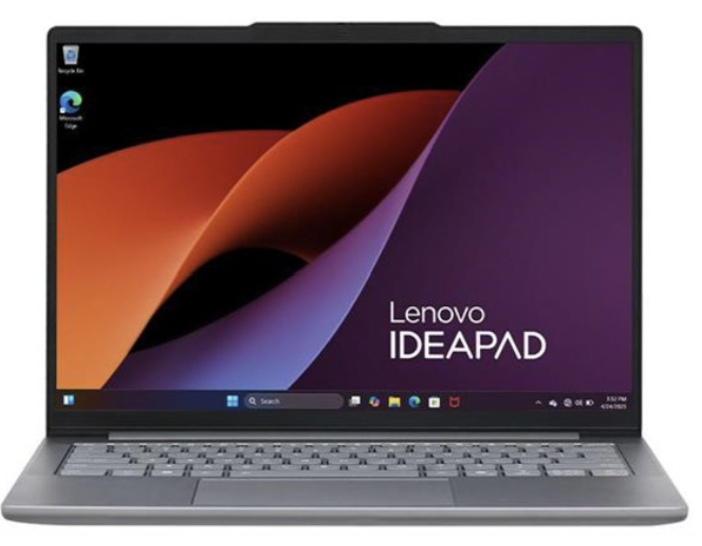
Lenovo IdeaPad Slim 5 Laptop:
• CPU: Intel Core Ultra 5 125H,
• RAM: 16GB LPDDR5x7467 MT
• Storage: 512 GB SSD M.2 2242 PCIe 4.0 × 4 NVMe
• WiFi card: WiFi 802.11ax 2 × 2
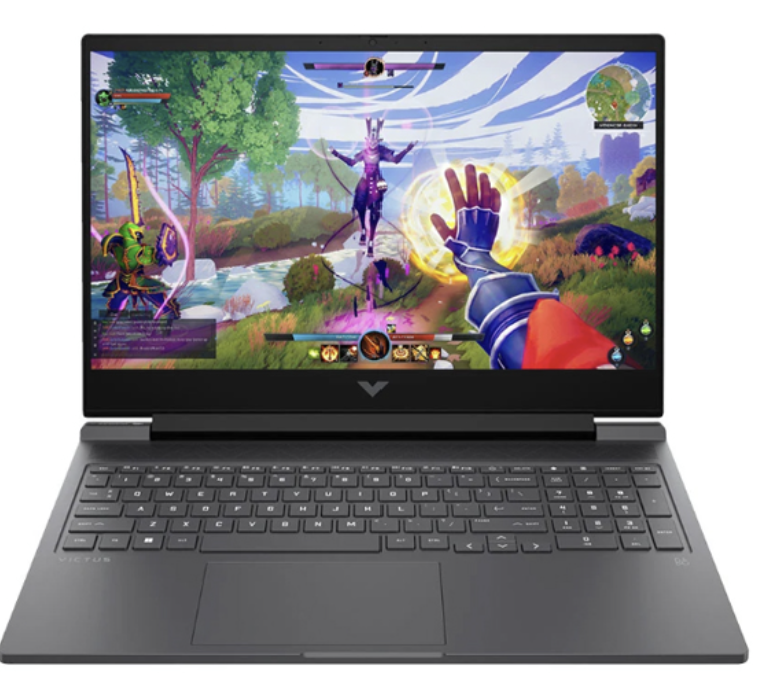
HP Gaming Victus 16 Laptop:
• CPU: AMD Ryzen 5 7640HS
• RAM: 16 GB, DDR5, 5600 MHz
• Storage: 512 GB PCIe Gen4 NVMeTM M.2 SSD
• WiFi card: WiFi 802.11ax.
3) Digital Art Design and Multimedia Communication Groups:
Minimum Configuration:
► Intel Core i5 or higher (i7 is recommended).
► Dedicated graphics card (VGA) 4GB or higher, Full HD screen or higher.
► At least 512GB SSD.
► RAM ≥ 16 GB.
► Intel Dual WiFi card AC standard or newer.
Some suggested models:

Asus AI V16 Gaming Laptop:
• CPU: Intel Core 5 210H
• RAM: 16GB DDR5 5600MHz
• Storage: 512 GB M.2 PCIe Gen4 SSD
• VGA: RTX 3050 6GB
• WiFi card: WiFi 802.11ax
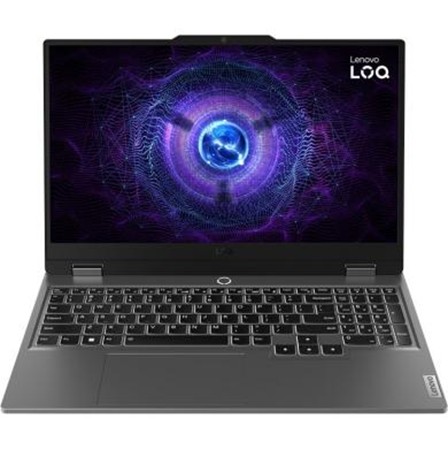
Lenovo LOQ 15IRX9 Laptop:
• CPU: Intel Core i7-13650HX AI-supported
• RAM: 24GB DDR5 4800MHz
• Storage: 512GB SSD M.2 PCIE
• VGA: RTX 4050 6GB
• WiFi card: 802.11ax
Note:
⇒ Students can use a Macbook during their studies.
⇒ However, for exams, a computer with a Windows operating system must be used.
⇒ Virtual machine software for running Windows on Macbook, such as Vmware, Parallel, VirtualBox, etc., is not allowed.
⇒ If a student's machine does not have an SSD, it is recommended to purchase an SSD to increase processing speed.
⇒ The computer operating system should be Windows 11.
5. Instructions:
1) Instructions for registering and using WiFi network access:
For classroom areas:
- WiFi use is permitted with the lecturer's approval.
- Each student is allowed to use one laptop registered with the university to access WiFi.
- WiFi name: FPTU_Students: used for studying.
- WiFi name: FPTU_Exam: used for exams.
For public areas (Library, Canteen, Hall, etc.): Students can use WiFi for free with no limit on time or access speed. The WiFi password is 12345678.
Step 1: Instructions for getting the MAC address of the laptop's WiFi card.
• Purpose: Students register their laptop's MAC address with the IT department for network access.
• Open “Settings”, select “Network & Internet”, select “Wifi”.
• Under “Random hardware addresses”, select “Off”. Then select “Hardware properties”.

• The laptop's MAC address is listed under “Physical address (MAC)”.

Step 2: Register the laptop's MAC address with the IT department for WiFi access.
• Access the website: https://it-hcm.fpt.edu.vn/. Select “ĐĂNG KÝ MAC” (REGISTER MAC).
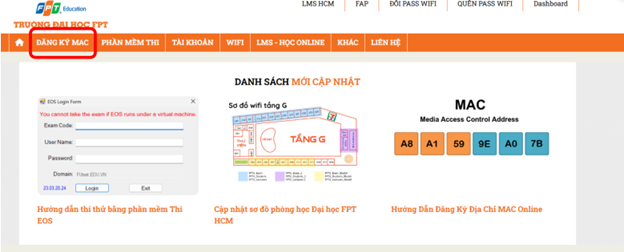
• Students log in with the university-provided WiFi account.

• You will be redirected to the OTP entry page. The OTP code will be sent to your registered email. Enter the OTP and click “Verify OTP”.

• On the Dashboard, select "Gửi yêu cầu" (Send Request).

• Enter the MAC address, select "Xác thực thông tin" (Authenticate Information), and "Submit".
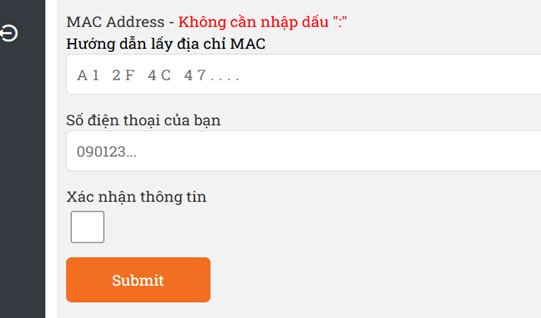
Note: Students can review how to get the MAC address by clicking on the link "Hướng dẫn lấy địa chỉ MAC" (Instructions for getting MAC address).
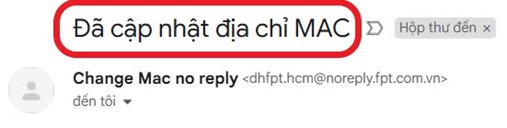
- Once updated, students will receive an Email with the subject "Đã cập nhật địa chỉ MAC" (MAC address updated) or can check for the "Done" status on the Website.
Step 3: Instructions for connecting to student WiFi.
+ Find the “FPTU_Students” WiFi network and select “Connect”.
+ Enter the university-provided account information, then select “OK” to connect.
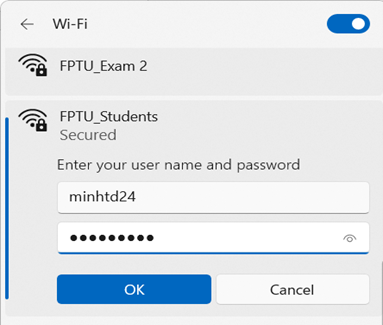
+ Change the default password immediately upon the first login => select OK.
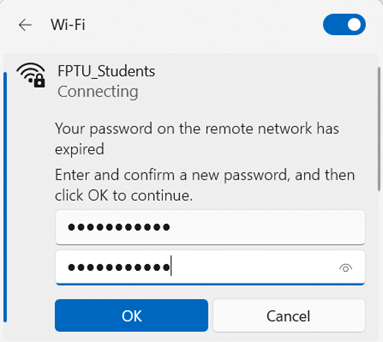
+ You have successfully connected to WiFi.

2) Instructions for using the LMS learning system.
- Access the website: https://lms-hcm.fpt.edu.vn.
- Log in with the university-provided WiFi account.
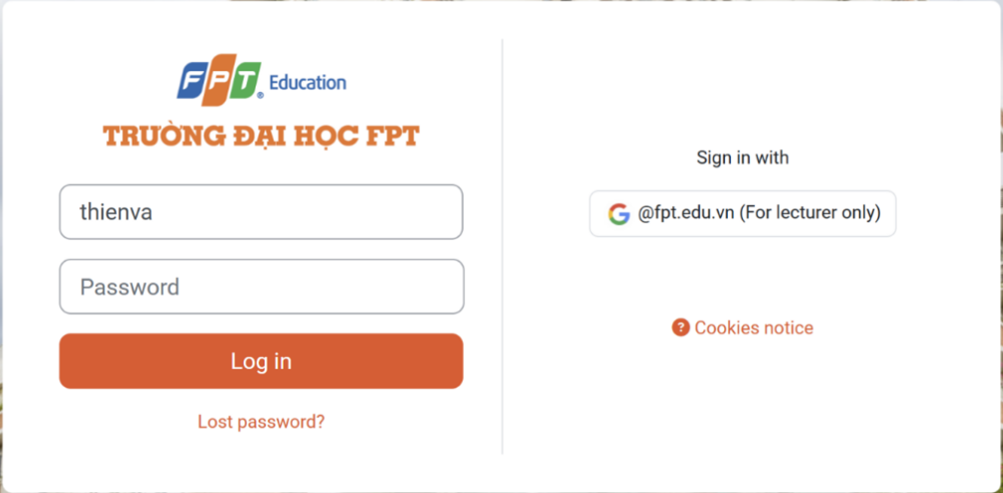
1) Search for courses: Enter the course name or course code.

2) Log in to the course:
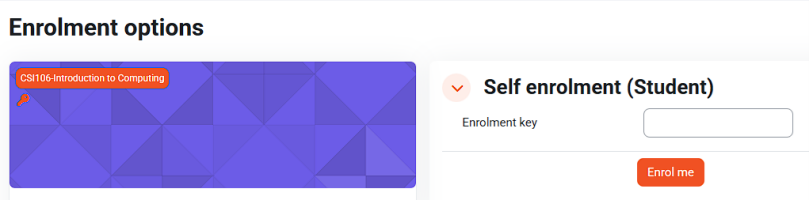
The lecturer provides the class password => The student enters the enroll key password => Select Enrol me.
Note: Students can skip this step if their name is already on the course list.
3) Download materials: Download materials provided by the lecturer for each course (course introduction documents, lecture slides, estimated quiz/exam times, etc.).
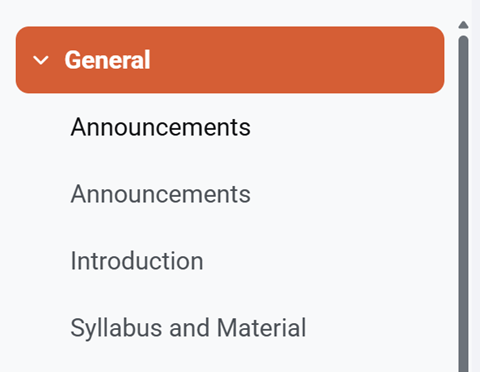
4) Forum: Discussion board for course-related discussions and lecturer Q&A.

5) Quiz:
5.1 Select the Quiz in the Course.
|
Select the Quiz in the Course.
|

5.2 For in-class exams/tests: Enter the password to start the test.

5.3 Download Safe Exam Browser/SEB for testing from https://it-hcm.fpt.edu.vn/.
6) View scores: After completing the test.
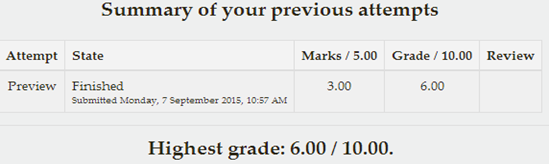
7. Assignments: Select the assignment name to view homework.

8) View Quiz & Assignments scores.

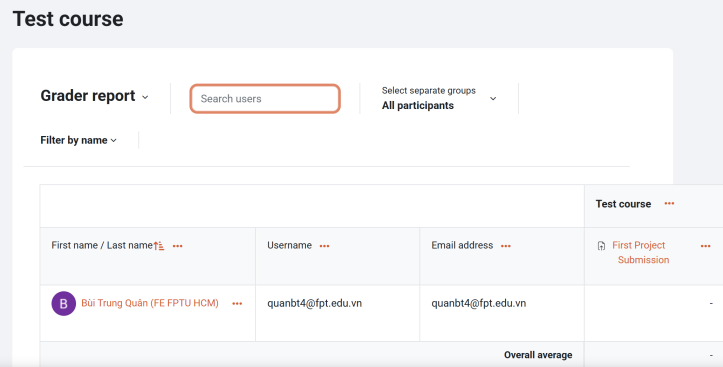
3. Instructions for using the FAP training management system.
1. Access the website: https://fap.fpt.edu.vn/.
On the Login screen, select “Login with FeID”,
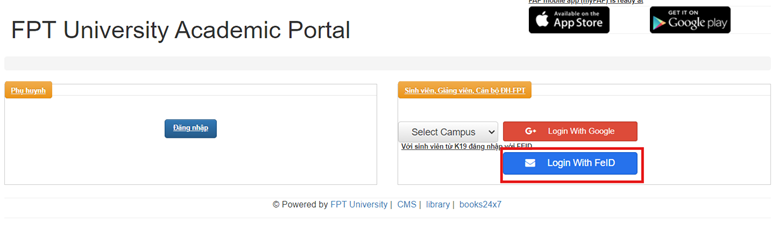
then log in using your FeID username and password.

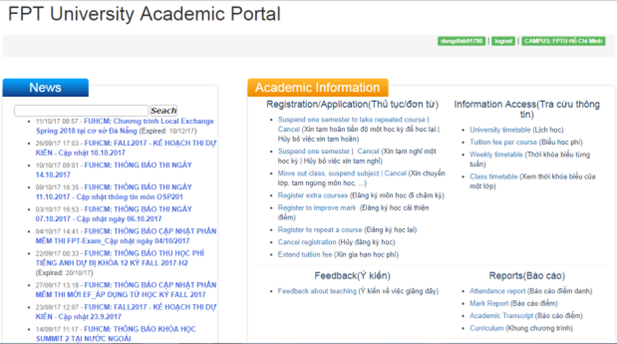
Information available on FAP:
► News
► University timetable
► Attendance report
► Mark report
► Academic Transcript
► Curriculum
4. Instructions for using the exam software EOS_Client, PEA_Client:
Note:
► Use the Windows 10, 11 operating system.
► Do not install virtual machines or virtual network cards (VirtualBox, Vmware, Parallels, etc.).
► Turn off all antivirus software (Avast Antivirus, Kaspersky, Windows Defender, 360 Security, Norton, etc.) before entering the exam software.
► Uninstall VPN software (1.1.1.1, Cloudflare, Radmin, etc.).
Step 1: Download the exam software at: https://it-hcm.fpt.edu.vn => select “Phần mềm thi” (Exam Software).
Step 2: Unzip the exam software by right-clicking and selecting “Extract All”.
Step 3: Right-click the “EOS_Client.exe” or “PEA_Client.exe” file => Run as Administrator:

⇒ Examcode: will be provided by the invigilator.
⇒ Username/Password: log in using the WiFi Username and Password.
⇒ Check sound: checks if the computer's audio is working well for the listening section.
⇒ Check font: checks if the necessary fonts are installed to display the exam (required for languages like Chinese and Japanese).
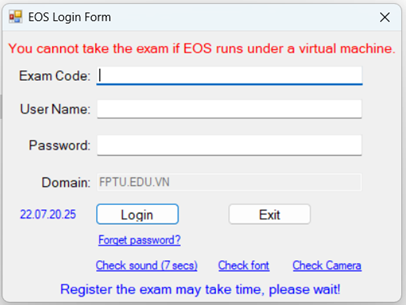
Step 4: Select Login to start the exam.
Step 5: To end the exam, select “I want to finish exam…” => “Finish”.

TÀI KHOẢN
- 1 . FPTU-CAMPUS HCM information technology system
- 2 . Hệ thống công nghệ thông tin FPTU-CAMPUS HCM
- 3 . Hướng dẫn đổi mật khẩu tài khoản nội bộ dành cho Tân sinh viên
- 4 . Hướng Dẫn Đăng Nhập Website FAP Dành Cho Giảng Viên
- 5 . Hướng Dẫn Đăng Nhập Tài Khoản @FPT.EDU.VN Dành Cho Cán Bộ Và Giảng Viên
- 6 . Guide To Change The Password of The WiFi Account
- 7 . Hướng Dẫn Đăng Nhập Outlook bằng tài khoản @FE.EDU.VN Dành Cho Cán Bộ Và Giảng Viên
- 8 . Hướng Dẫn Đặt Lại Mật Khẩu Tài Khoản Nội Bộ
- 9 . Hướng dẫn lấy lại mật khẩu Wifi FPTU HCM
- 10 . Hướng dẫn thanh toán học phí online