
Hướng dẫn tắt tính năng tự động truy cập WiFi
 Võ Anh Thiện
6 phút đọc
7938 views
Võ Anh Thiện
6 phút đọc
7938 views

- Sinh viên khi tham gia kì thi và làm kiểm tra chỉ có thể đăng nhập Wifi FPTU_Exam, các Wifi khác cần phải tắt chế độ tự động cập nhật. / - Students attending exams can only connect to the Wi-Fi "FPTU_Exam". Other Wi-Fi networks need to have the automatic connect feature disabled.
Để thực hiện điều đó, sinh viên có thể làm theo các bước sau. / To do that, students can follow steps below:
Bước 1: Chuột phải vào mạng Wifi cần ngắt kết nối. / Step 1: Right-click on the Wi-Fi network that you want to disconnect from.
Lưu ý: Chú ý các Wifi có thể truy cập Internet (FPTU_Students; FPT_University_ HCM, FPTU_Lecturers,…). / Note: Focus on Wifi can connect to the Internet (FPTU_Students; FPT_University_ HCM, FPTU_Lecturers,…).
.png)
Bước 2: Chọn “Forget”. / Step 2: Choose “Forget”.
.png)
Lưu ý: Trường hợp không hiện chữ “Forget”, có thể bỏ qua Wifi đó. / Note:If "Forget" does not appear, you can skip that Wi-Fi.
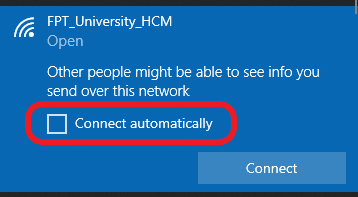
Bước 3: Bỏ chọn khung “Connect Automatically”. / Step 3: Uncheck the “Connect Automatically”.
Video Hướng Dẫn Tắt Tính Năng Tự Động Truy Cập Wifi Dành Cho Sinh Viên Tại Campus HCM - Video Guide for Disabling Wi-Fi Connect Automatically for Students at HCM Campus::
PHẦN MỀM THI
- 1 . Hướng Dẫn Thi Trên USB
- 2 . Hướng Dẫn Tắt Bitlocker Trên Windows
- 3 . Hướng dẫn sinh viên truy cập Bios & menu Boot trên các dòng laptop
- 4 . Hướng dẫn thi thử bằng phần mềm Thi EOS | How to test the examination software
- 5 . Download FPTU EOS PEA SPK
- 6 . Hướng dẫn tắt tính năng tự động truy cập WiFi
- 7 . Install and login to the examination software of FPT university
- 8 . Video Hướng Dẫn Sử Dụng Phần Mềm Thi
- 9 . Hướng dẫn sử dụng phần mềm thi EOS_Client | How to login to the examination software EOS_Client