
Hướng Dẫn Đặt Lại Mật Khẩu Tài Khoản Nội Bộ
 Võ Anh Thiện
8 phút đọc
7718 views
Võ Anh Thiện
8 phút đọc
7718 views
Username là gì?
What is my username?
Example:
- Fullname: Nguyễn Đức Duy
- Student ID: SE206234
--> Username: DuyNDSE206234
*Quy định về mật khẩu
Password rules
• Mật khẩu không chứa họ tên hoặc mã số sinh viên.
The password must not contain your full name or student ID.
• Mật khẩu phải có tối thiểu 8 ký tự, bao gồm ít nhất một trong các loại sau:
The password must be at least 8 characters long, and include at least one of the following:
- Ký tự viết hoa (A–Z)
Uppercase letter
- Ký tự thường (a–z)
Lowercase letter
- Chữ số (0–9)
Number
- Ký tự đặc biệt (@ # $ % * ( ) ^ ! & ~ + - = …)
Special character
Bước 1: Truy cập website https://reset-hcm.fpt.edu.vn/ResetPassword
Step 1: Go to https://reset-hcm.fpt.edu.vn/ResetPassword
.png)
Bước 2: Nhập đầy đủ thông tin yêu cầu và nhấn “Submit”.
Step 2: Enter all required information and click “Submit”.
Lưu ý: Sinh viên từ khóa 19 trở đi phải nhập đúng email đã đăng ký với trường.
Note: Students from cohort K19 onward must enter the exact email registered with the university.
Bước 3: Hệ thống sẽ gửi đường dẫn “Reset Password” vào email. Hãy kiểm tra hộp thư của bạn.
Step 3: The system will send a “Reset Password” link to your email. Check your inbox.
.png)
Lưu ý: Nếu không nhận được email, hãy thử gửi lại yêu cầu một lần nữa.
Note: If you do not receive the email, submit the form again.

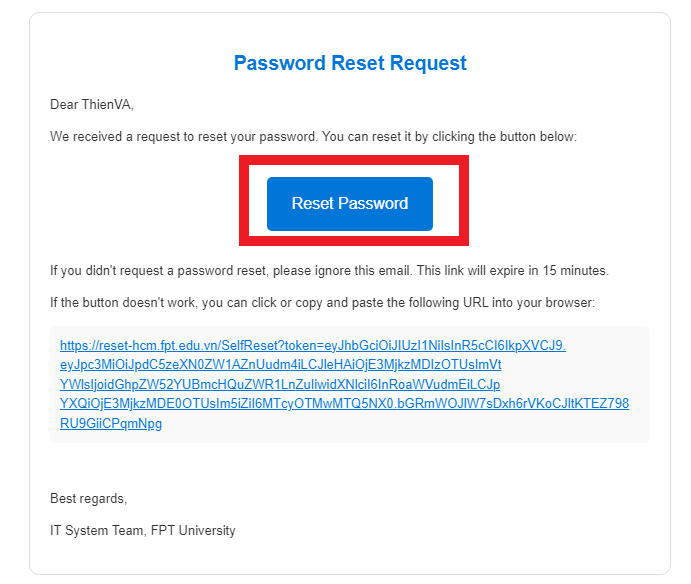
Bước 4: Mở email, chọn đường link “Reset Password” và đặt mật khẩu mới.
Step 4: Open the email, click the “Reset Password” link, and create a new password.
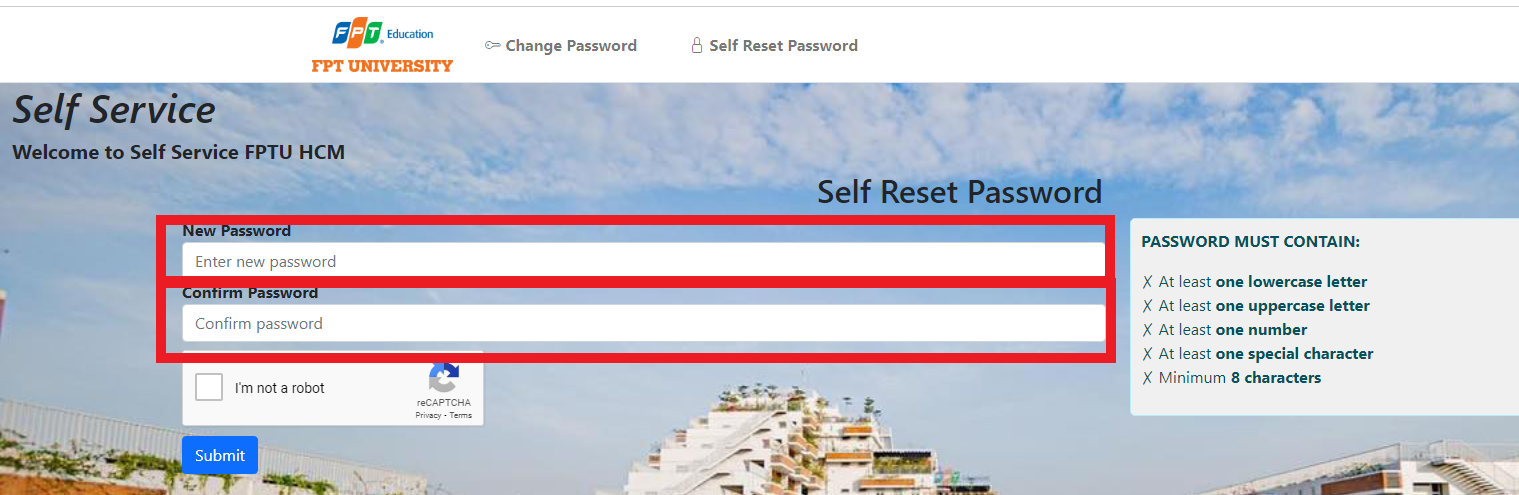
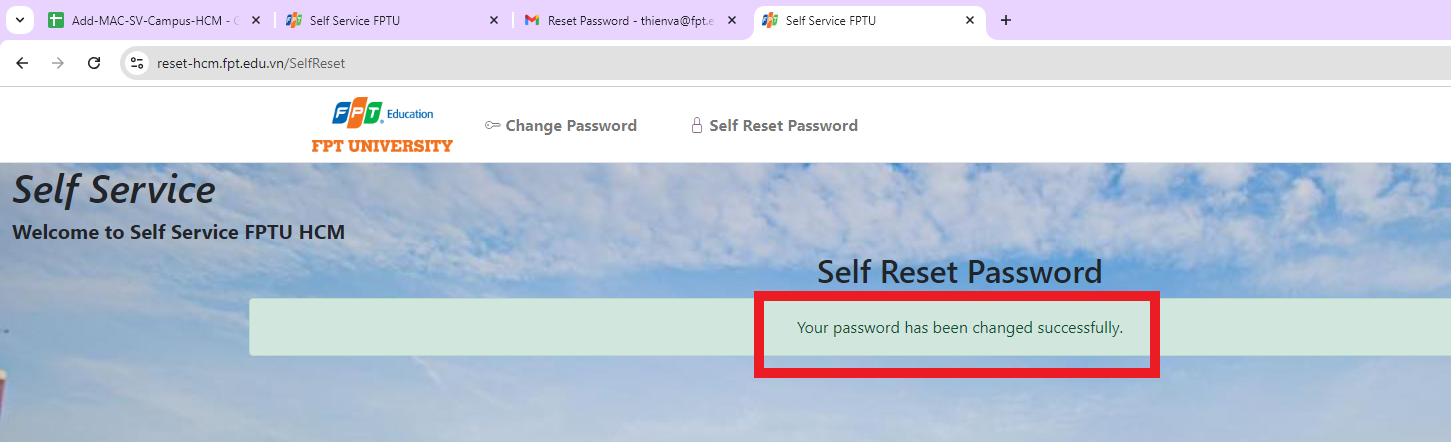
Trong trang đặt lại mật khẩu, nhập mật khẩu mới vào các ô trống.
On the reset page, enter your new password into the required fields.
TÀI KHOẢN
- 1 . FPTU-CAMPUS HCM information technology system
- 2 . Hệ thống công nghệ thông tin FPTU-CAMPUS HCM
- 3 . Hướng dẫn đổi mật khẩu tài khoản nội bộ dành cho Tân sinh viên
- 4 . Hướng Dẫn Đăng Nhập Website FAP Dành Cho Giảng Viên
- 5 . Hướng Dẫn Đăng Nhập Tài Khoản @FPT.EDU.VN Dành Cho Cán Bộ Và Giảng Viên
- 6 . Guide To Change The Password of The WiFi Account
- 7 . Hướng Dẫn Đăng Nhập Outlook bằng tài khoản @FE.EDU.VN Dành Cho Cán Bộ Và Giảng Viên
- 8 . Hướng Dẫn Đặt Lại Mật Khẩu Tài Khoản Nội Bộ
- 9 . Hướng dẫn lấy lại mật khẩu Wifi FPTU HCM
- 10 . Hướng dẫn thanh toán học phí online